Most Google Ads accounts get worse as they get more complicated.
After auditing over a thousand accounts, I’ve found simpler structures usually win. To prove that to you, one Shopify store we worked with grew revenue 59% after we simplified their account.
So I’ll show you exactly what we changed, why it worked, and how to use the same approach in your store.
Here’s the mistake that was holding them back…
Simplify and Scale Your Google Ads
This free resource gives you an exact checklist for your Shopify store’s Google Ads account to grow revenue.
The Over-Management Error Killing Google Ads for Shopify Stores
Like a lot of advertisers, they thought more campaigns, more segmentation, and more settings means more control. But the opposite is usually true.
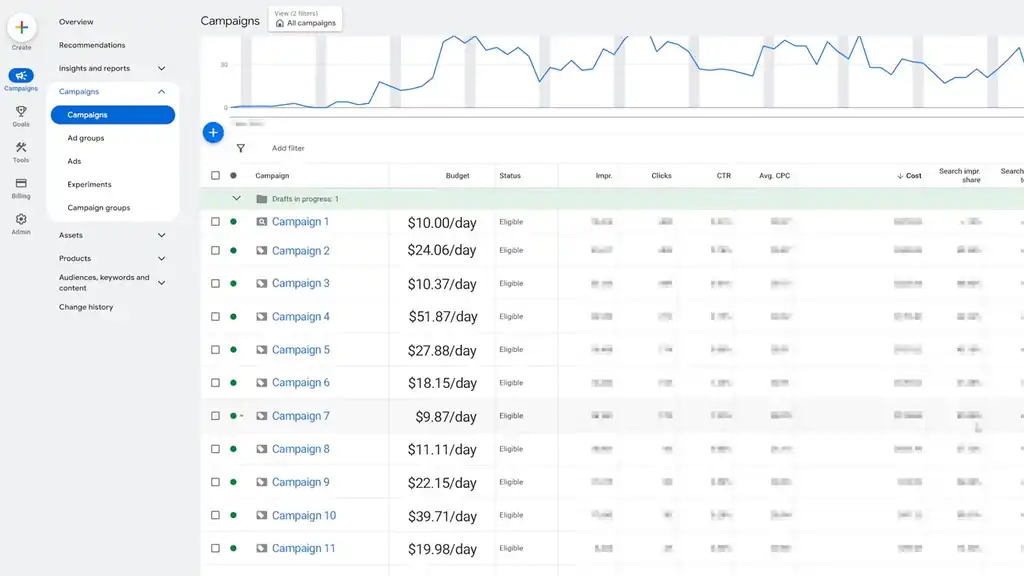
It spreads the budget thin, starves Google of data, and makes optimization harder. This huge trap is what I call the over-management error. People keep adding complexity because it feels productive. It looks advanced. But what looks like control is often just noise.
That was exactly the problem in this client account.
How We Fixed It
First, we combined similar campaigns and grouped low-volume products together. Because there were fewer campaigns, it was simpler to understand and make budget decisions, and Google had more data to learn. Then we increased ROAS targets for those fewer campaigns.
We had the confidence to do that because we had clearer profit goals from the groups of products. That gave the account a cleaner structure, stronger signals, and far less wasted budget.
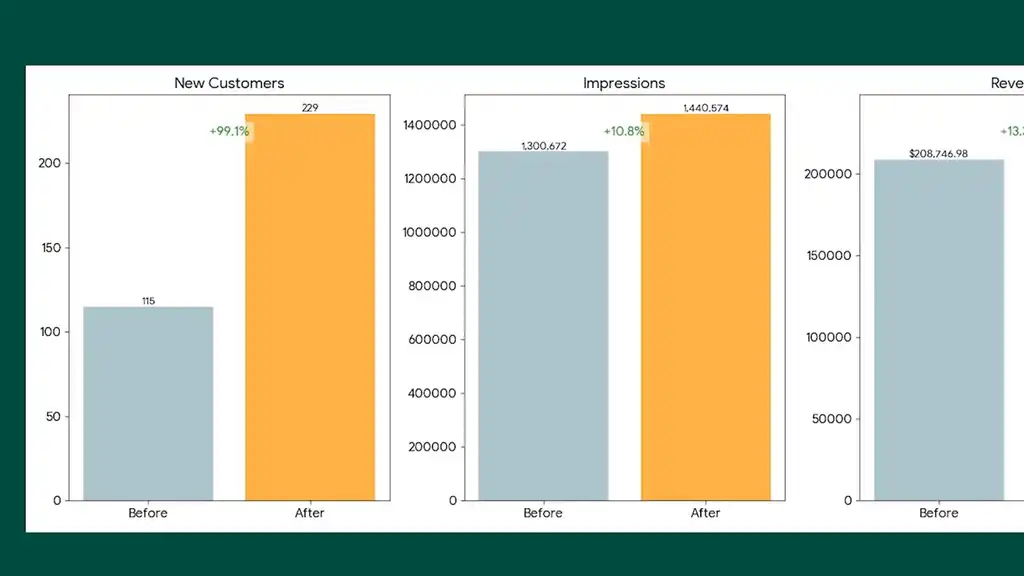
These changes doubled new customers and increased impressions and revenue. Their revenue jumped from $20K to $34K, and their store-wide conversion rate went up from 1.67% to 2.37%.
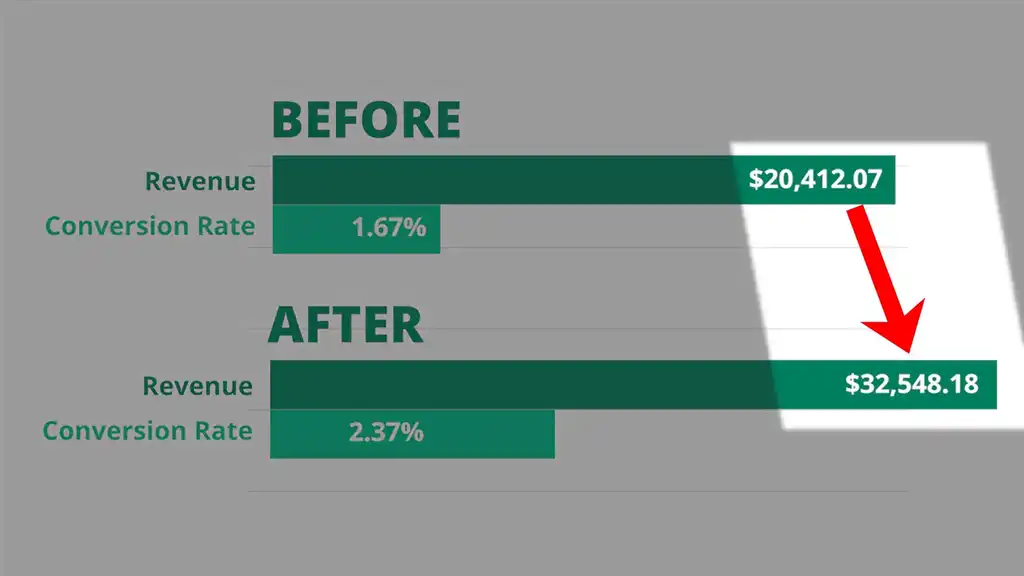
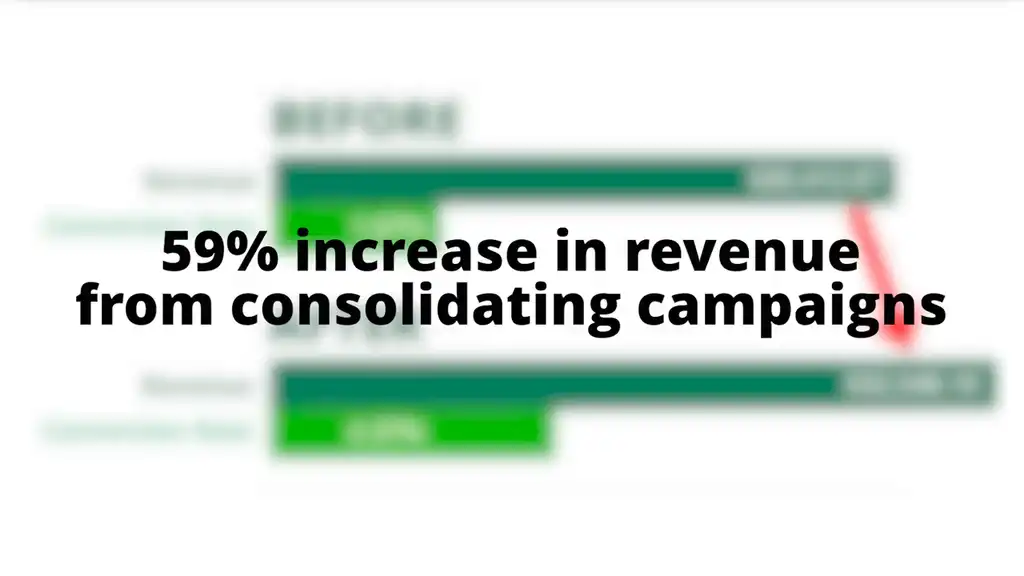
That’s a 59% increase in revenue from consolidating campaigns. Keep that 59% lift in mind, because the next few steps are exactly what made that possible.
Here’s how you can copy this for your store right now. It starts with a very simple question: is your account actually giving Google enough data to learn from?
Step 1: Audit Your Google Ads Account
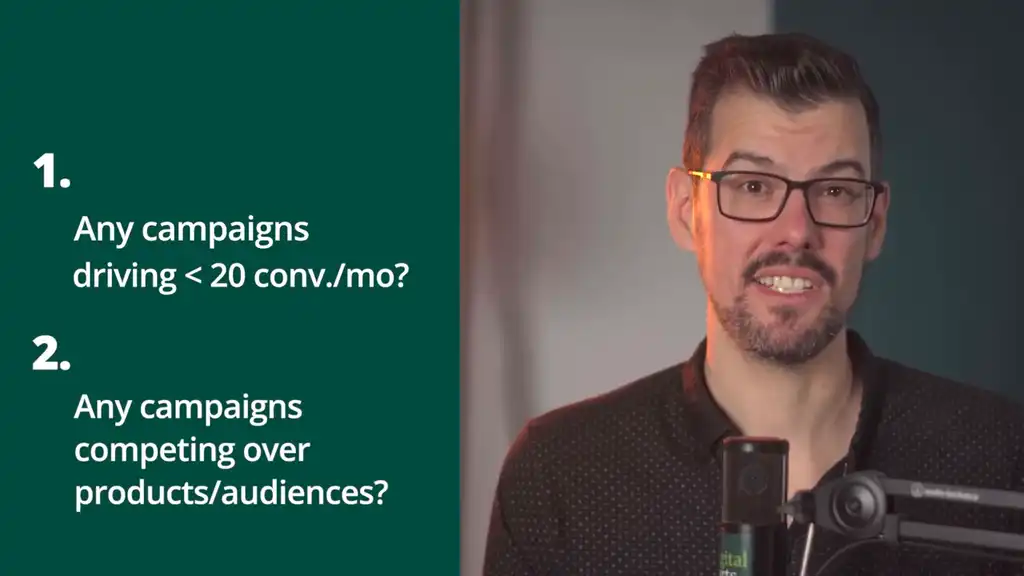
Go into your account and ask these questions.
- Are any campaigns driving fewer than 20 conversions a month? If yes, they’re too thin to give Google’s algorithm anything useful to learn from.
- Do you have campaigns that show in the same searches because of similar products? Look at your search terms report. That splits your budget and confuses the algorithm.
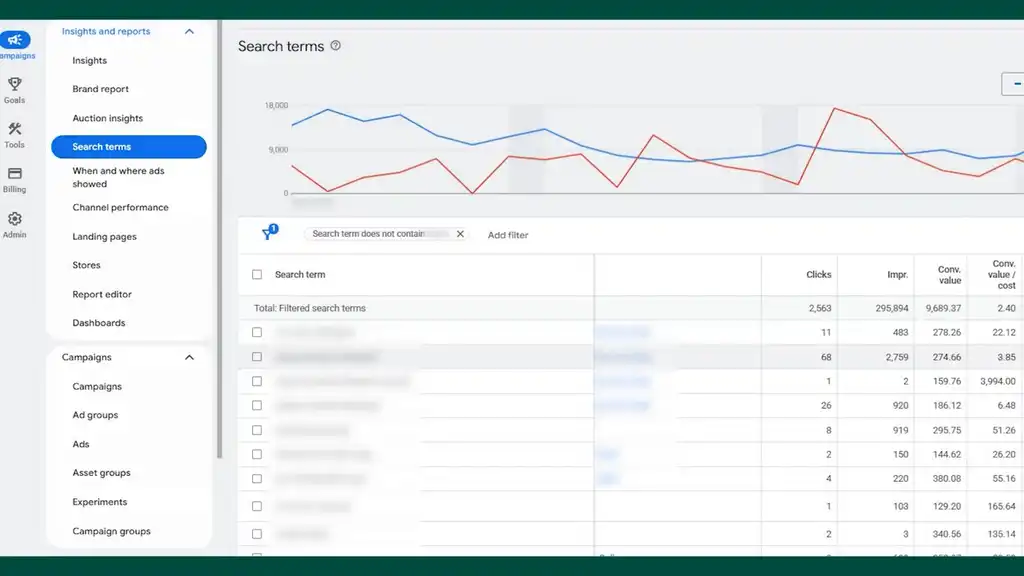
That’s the aha: if a campaign never gets enough data to learn, it doesn’t matter how neatly you organized it.
If you answered yes to any of those, you’ve found your problem campaigns. Now you know what to pause and what to merge. That freed-up budget is what we’ll put to work in a moment.
Step 2: Choose the Right Campaign Type for Your Shopify Store
After auditing your account, the next question you need to be asking is: which campaign type should I choose? And this is where a lot of Shopify stores get pushed toward the wrong starting point.
Don’t Start With Performance Max
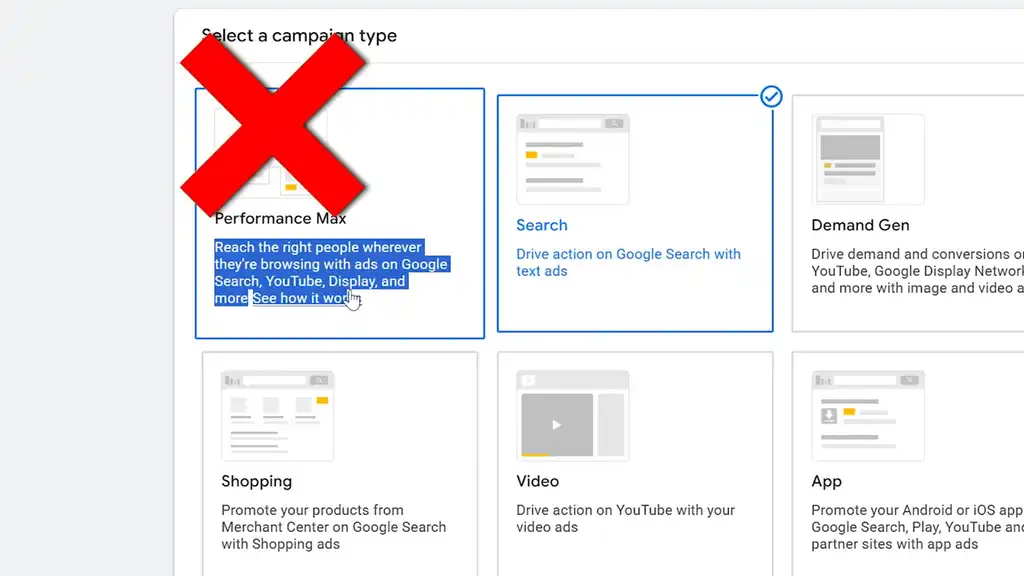
If you’re a Shopify store, my advice is to not start with Performance Max. It looks easy on the surface and you might think, “I can reach audiences across all of Google with a single campaign!” But that’s also the issue. It spreads your budget and leads to worse decision-making. You’re basically paying Google to guess. This is a killer if you’ve got a small budget.
Also, its extra settings and reporting leads to confusion, and you’re forced to use a smart bidding strategy of conversions or conversion value, which makes it a rough starting point for newer advertisers.
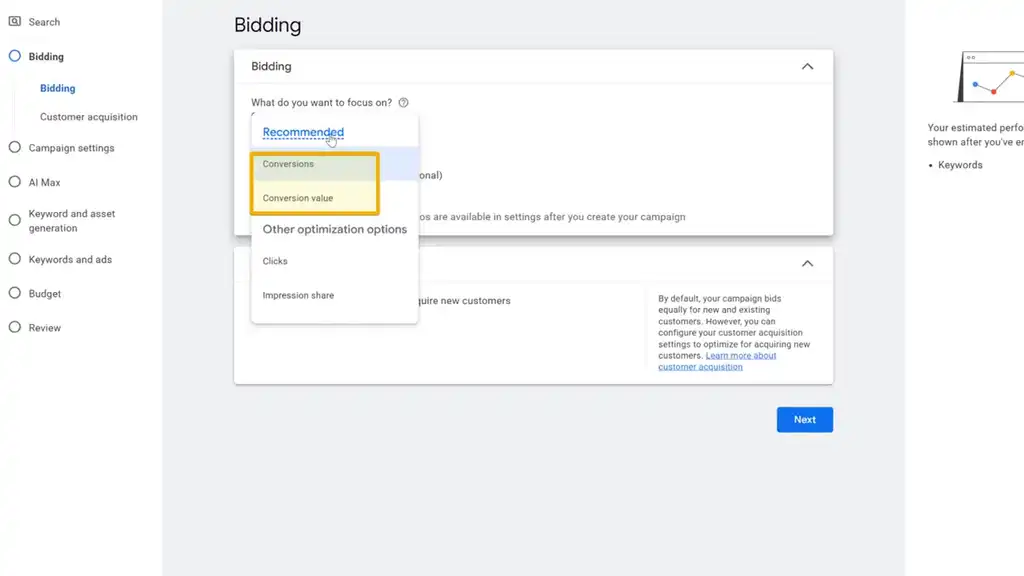
Start With a Shopping Campaign Instead
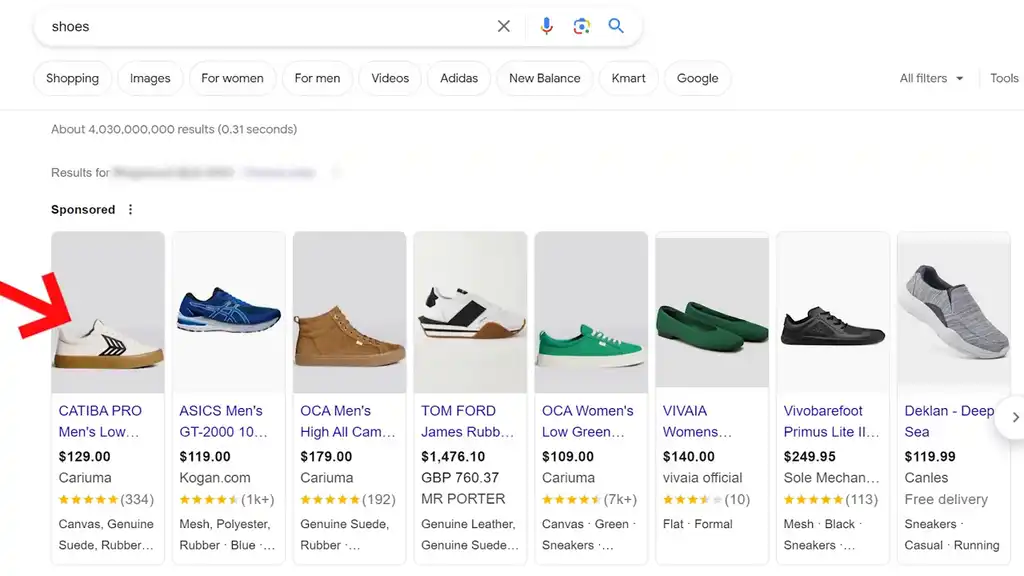
I recommend most Shopify stores have a solid Shopping campaign before bothering with anything else. Shopping is king for most Shopify stores because your products appear visually at the top of results, buyers are already in purchase mode when they search, and you can see exactly which products are profitable.
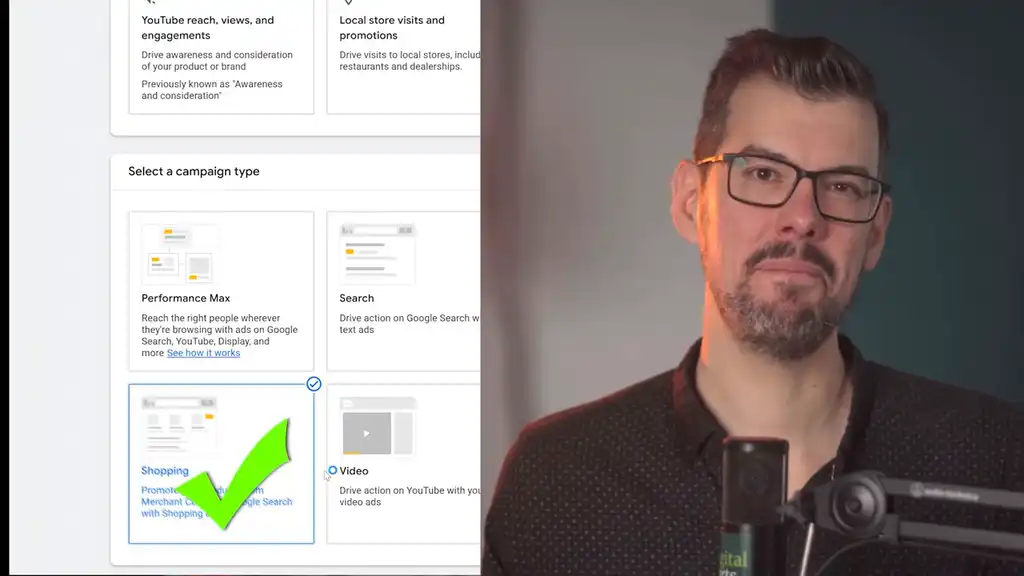
If you want the easier way, Shopping gives you more clarity, more control, and better visibility into what is actually working.
I’m not going to run through a full Shopping setup now. I did that recently in this Google Ads tutorial for Shopify that goes for almost two hours. But I do have some fast and easy wins to help you optimize your Shopping campaign to scale profitably. And this first one is the most overlooked revenue lever I know.
Step 3: Optimize Your Product Feed
Here’s the thing. A Shopping campaign is only as good as the product data feeding into it. It’s the part people skip because it isn’t sexy.
And the single biggest lever most Shopify stores are leaving untouched is their product titles.
Google reads your title to decide which searches your product shows up for. Most Shopify stores just use whatever title they put on their product page, which is usually written to sound good to a human, not so much to the search engine. That sounds harmless, but it creates a huge mismatch between what buyers type and what Google thinks you sell.
Real Data: What One Title Change Did
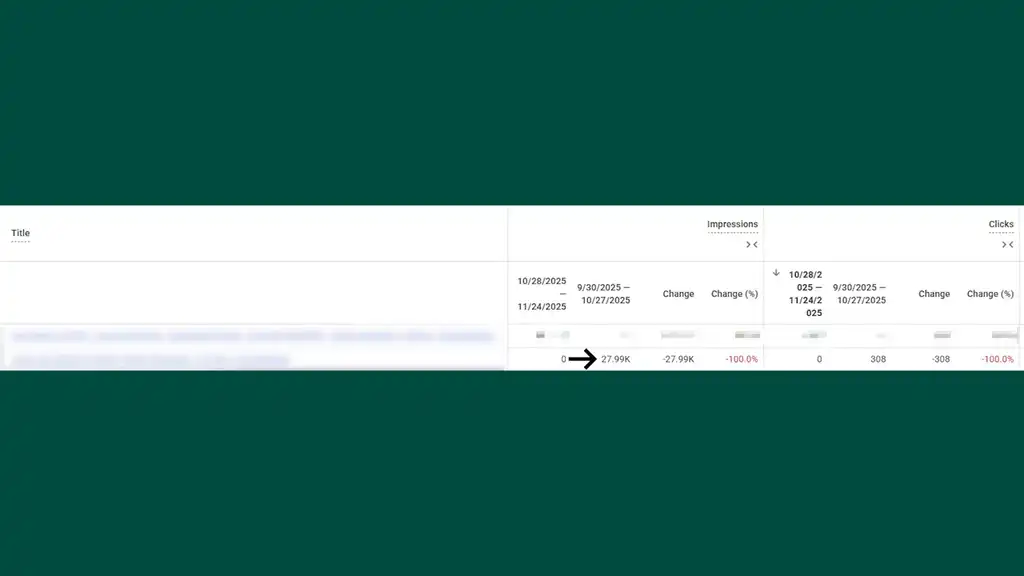
We wanted to see what effect title changes have even on a small store, so we tested this for a Shopify client. One store had 28K impressions and a conversion value of just under $7K. We optimised their product titles to include more relevant keywords and high-interest attributes. About four weeks later, from this one change, the result was a 46.1% increase in impressions and a 62.37% increase in conversion value.
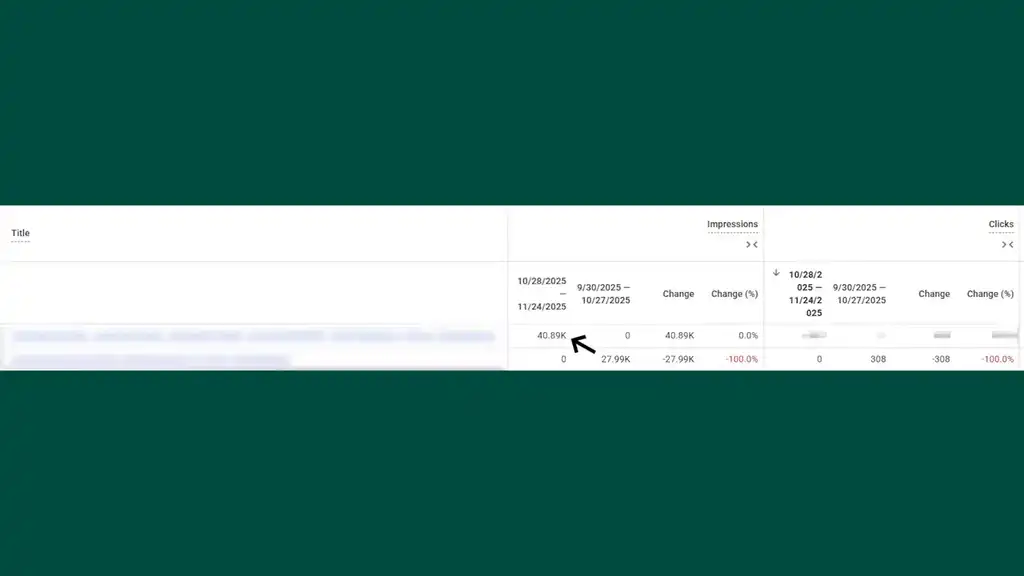
That’s not a small tweak. That’s a completely different business outcome from the same ad spend.
Remember earlier when I said simple often beats advanced? This is exactly what I mean. One feed change can outperform a pile of fancy account tweaks.
The Product Title Formula
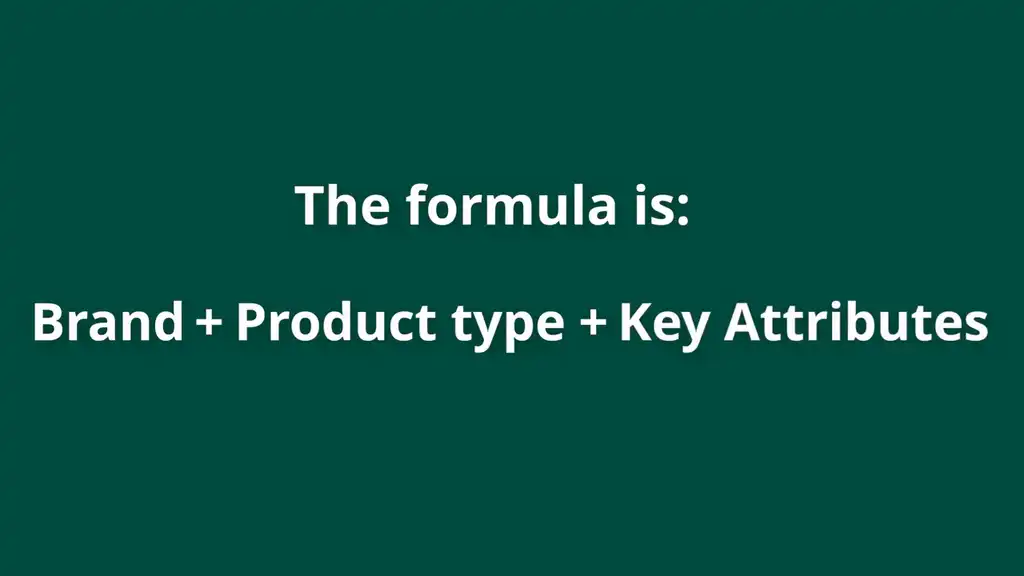
The fix is to front-load your titles with the words people actually search, but also include attributes Google needs to know exactly what your product is. If you have a well-known brand, the formula is: Brand + Product Type + Key Attributes.
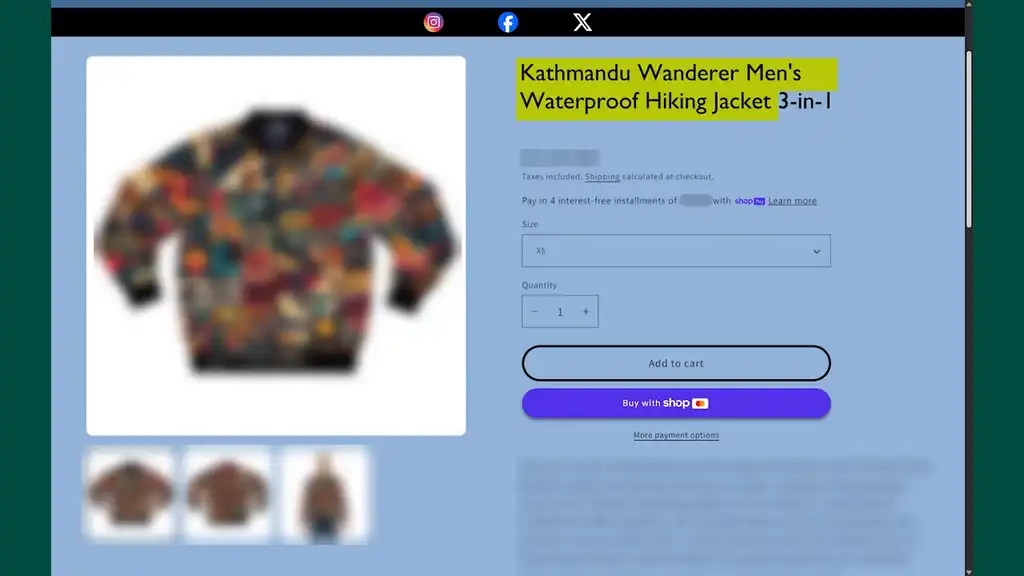
So instead of “The Wanderer”, which tells Google nothing, you’d write “Kathmandu Wanderer Men’s Waterproof Hiking Jacket 3-in-1.” Now Google knows exactly what it is and who to show it to. Google immediately sees relevance. Buyers see their search reflected back at them. That’s what clearer data looks like.
The trick is making the title useful to the algorithm without making it awkward for the human. You’re writing for an algorithm and a human at the same time.
To make this simple, go through your top 10 products and rewrite their titles using that formula. You can pull query data from Google Search Console for each product page for real keyword ideas. That alone will often improve your match quality more than any bid adjustment will.
I’ve given you what I think is the biggest change to boost your revenue fast in feed data. But feed optimization gets more complicated, so I have a whole chapter of my book dedicated to it. Check that out if you need more help, along with a free downloadable checklist to help you optimize your feed.
Step 4: Limit Products and Focus Budget on Winners
Once Google better understands what you sell, the next step is making sure it doesn’t spread ad spend across products that never deserved the budget in the first place.
This is where a lot of Shopping campaigns start wasting money without the advertiser realizing it. In the beginning, grouping products together makes sense because you’re still trying to learn what works. But once the data starts showing you clear winners, that same setup can become a problem. What helped you early can end up holding you back later.
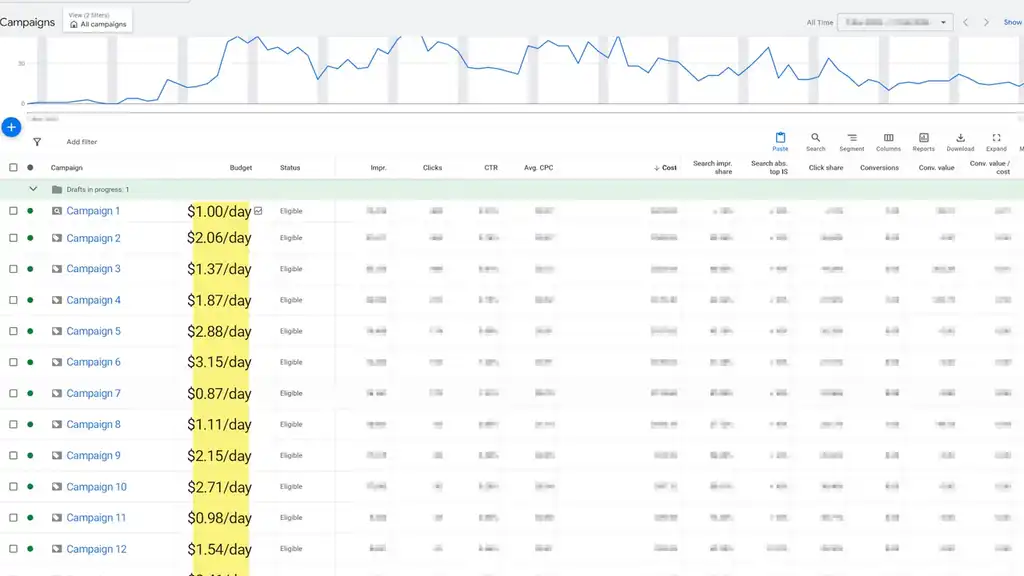
A common mistake is putting the entire store into one Shopping campaign and just leaving it there. I work with a store that has more than 50,000 products, and that gives you a good picture of how messy this can get. Think about what happens when all of those products compete inside one campaign. Your budget gets spread across everything, including products that were never likely to generate profit in the first place.
That means Google starts spending on weak products while your bestsellers get very little attention. Before the campaign has enough clean data to really understand what is working, the budget is already gone. Your winners are in the account, but they’re buried under too much noise.
Focus on Your Strongest Products
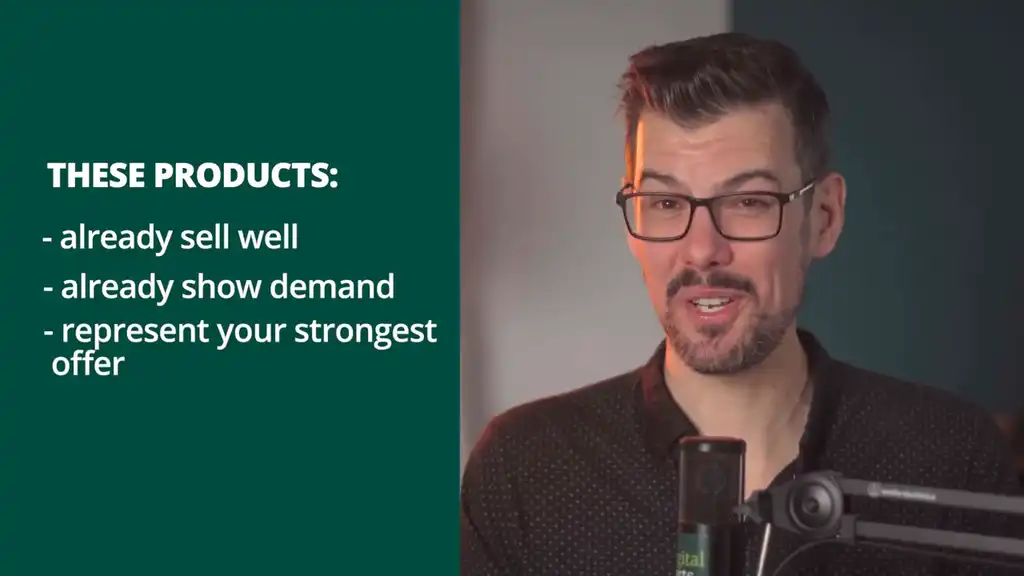
Once you have enough data to see clear bestsellers, stop treating every product equally. Narrow your Shopping focus to the products that have already proven themselves. These are the ones that already sell well, already show demand, or represent your strongest offer.
That doesn’t mean the rest of your catalog never matters. It means your budget stops pretending every product earned equal attention.
This matters because Google performs better when you give it cleaner signals. A product that already converts gives the system a much better chance of finding more buyers, faster.
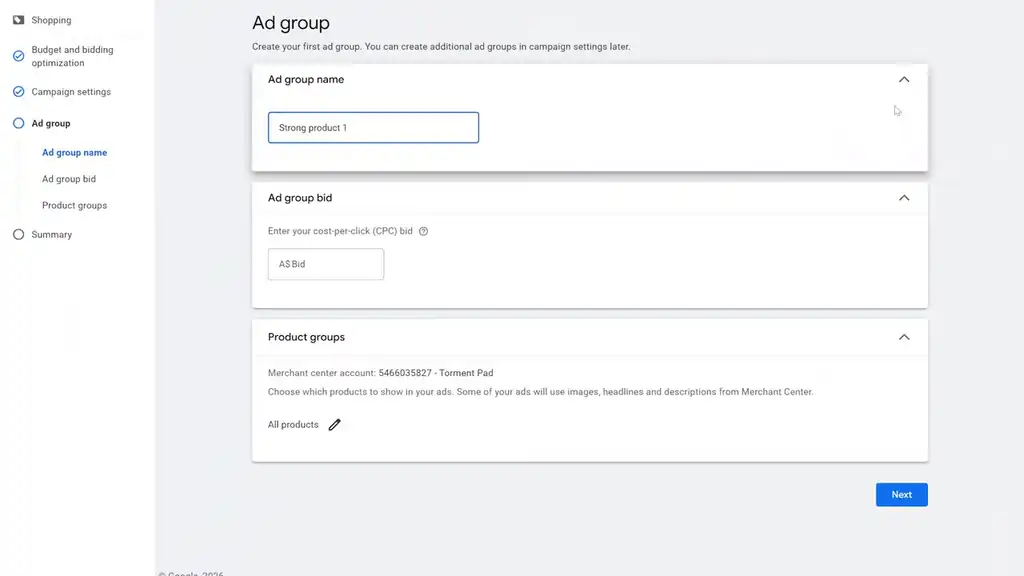
To do this for your store, take your strongest products and create one ad group for each of them.
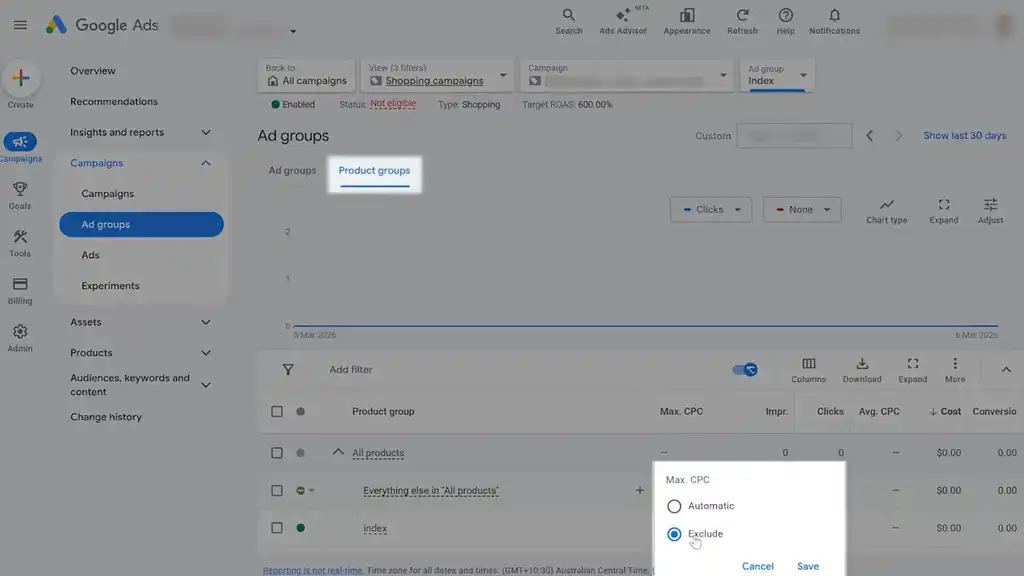
Then exclude the other products inside each ad group so that every ad group stays tightly focused on one winner. That keeps the budget concentrated instead of diluted across your whole catalog.
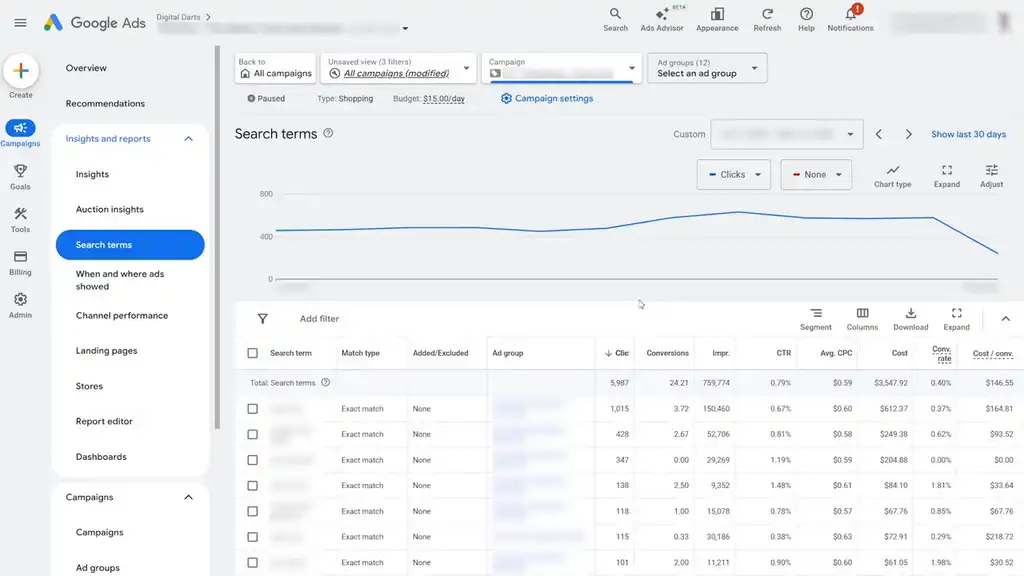
Now the campaign becomes much easier to control. You’re no longer feeding money into thousands of products that may never work. You’re giving more budget and more data to the products most likely to turn clicks into sales. That’s what makes scaling possible.
There’s another big advantage here too: clarity. Once the ads are running, you can see exactly what searches, clicks, and conversions are happening for each product. That makes optimization much easier because you’re not guessing which product is responsible for the result.
That’s the difference between looking organized and being profitable.
Step 5: Bidding Strategy (Don’t Jump to Automation Too Early)
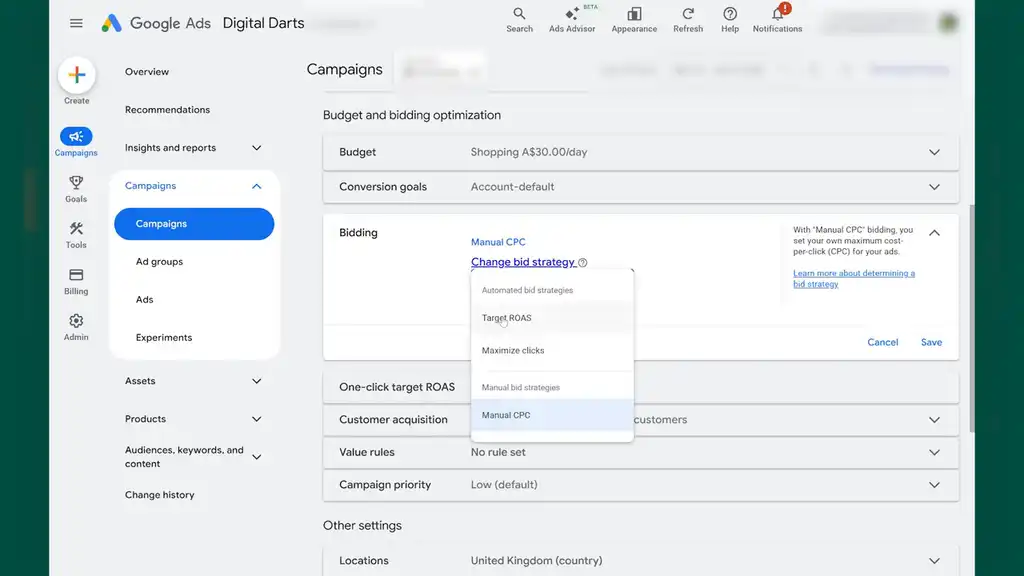
This is another place where people make Google Ads harder than it needs to be. They jump into automated bidding before the account has enough data to make smart decisions. That sounds advanced, but early on, it means expensive guesswork. Google cannot optimize well if it does not yet know what a real buyer looks like.
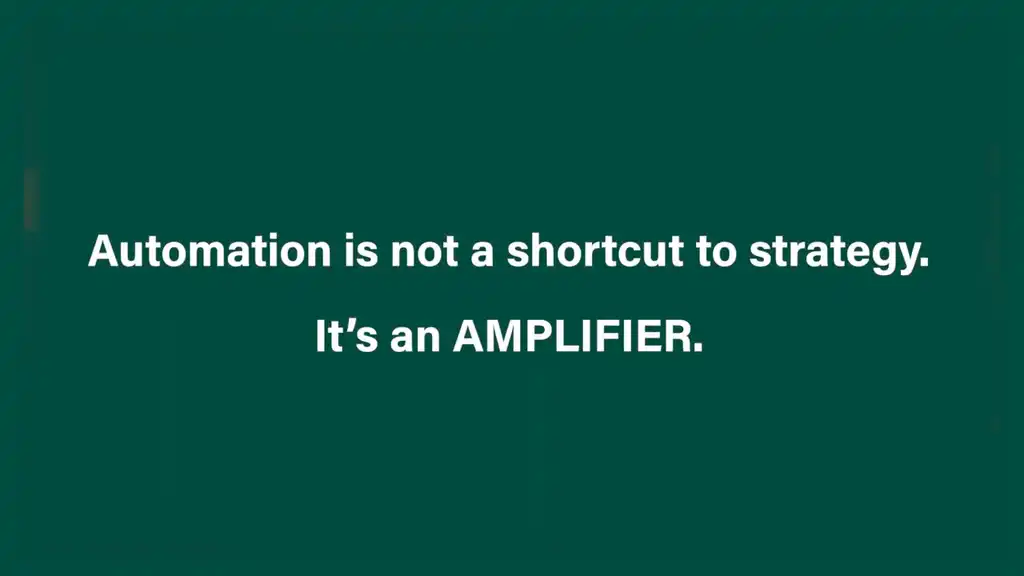
Automation is not a shortcut to strategy. It’s an amplifier. If the inputs are weak, it just scales weak decisions faster.
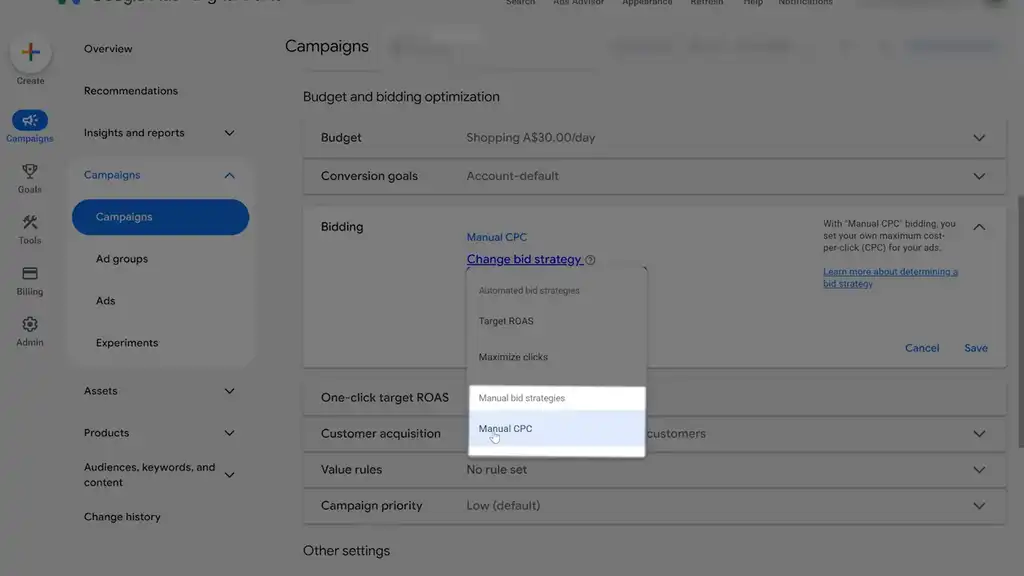
So instead, start with Manual CPC and let the campaign prove itself first. That gives you more control, better visibility, and time to collect clean purchase data. Once you’re getting enough consistent purchase data, then automation starts to make a lot more sense.
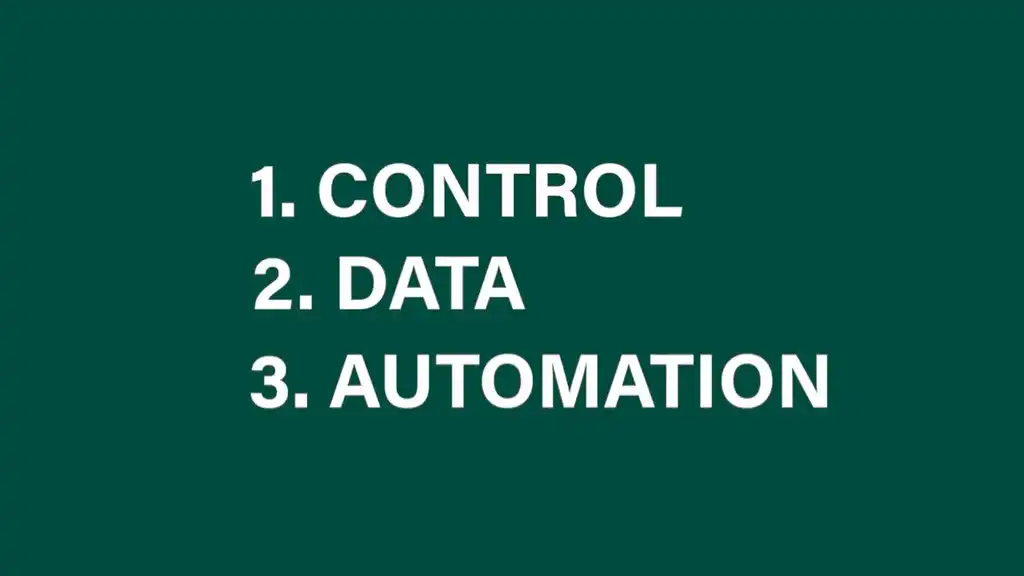
Control first, data second, automation third. That order matters. Handing the keys to Google too early is one of the fastest ways to lose control of the account. But once the campaign has proven it can convert, automation can help you scale.
Step 6: Add Negative Keywords to Stop Wasting Ad Spend
The next tip is embarrassingly simple, but most beginners skip it completely and it’s one of the fastest ways to improve performance.
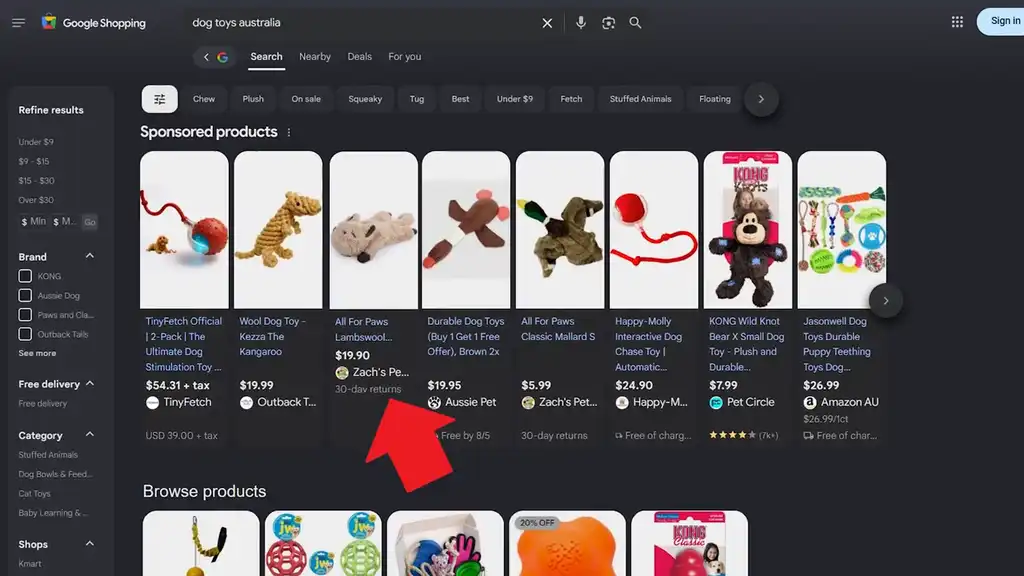
When Google decides which searches to show your Shopping ads for, it’s not perfect. You could be selling cat toys and end up paying for clicks from people searching for dog toys. Every irrelevant click is money that could have gone to someone who was actually going to buy.
Negative keywords are how you fix that. They tell Google which searches to block your ads from.
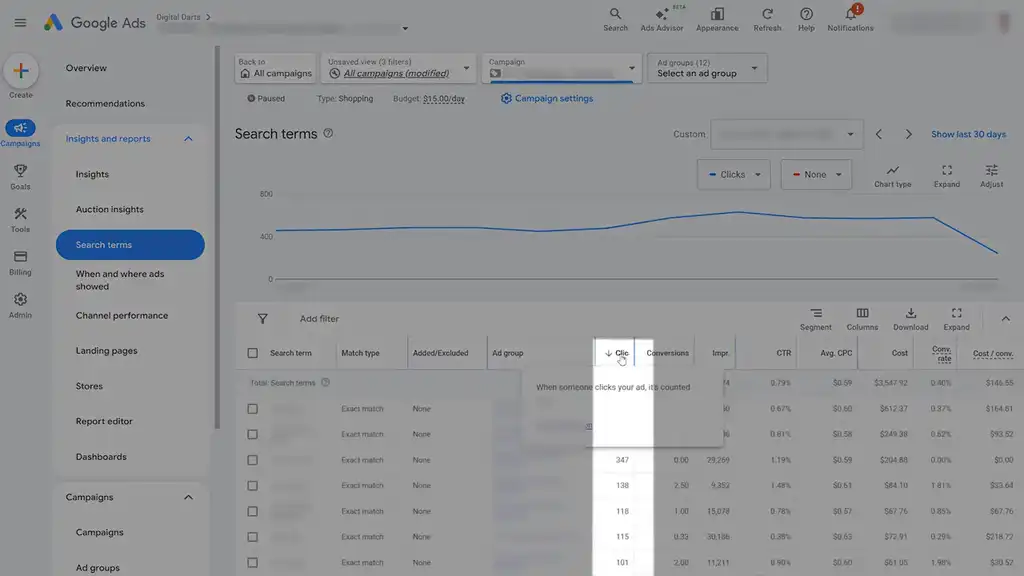
Go into your Search Terms Report and sort by Clicks, highest first. Scroll through and look for anything obviously wrong such as searches with no conversions that keep burning your budget. Add those as negatives.
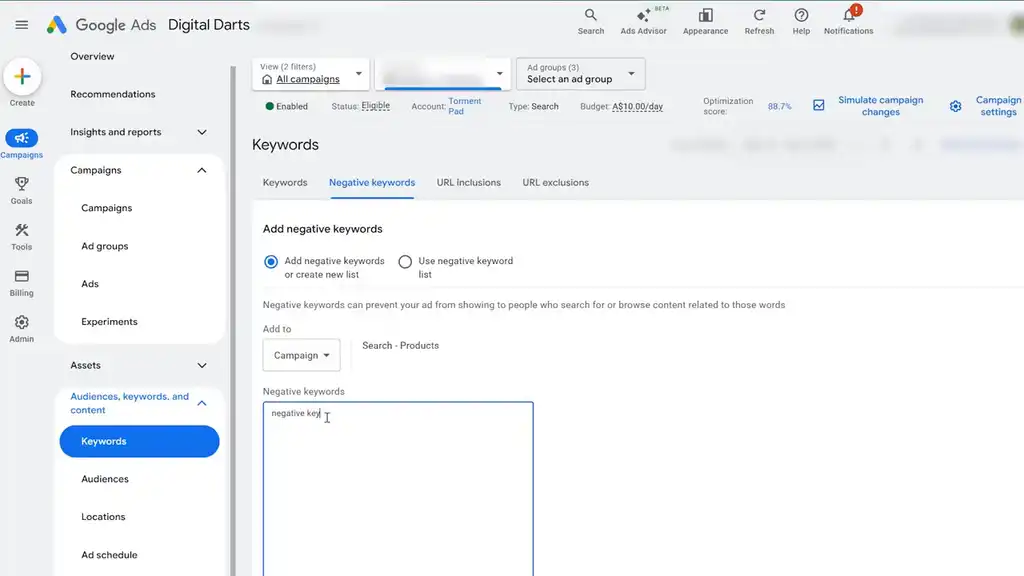
From there, also think like your customer from day one.
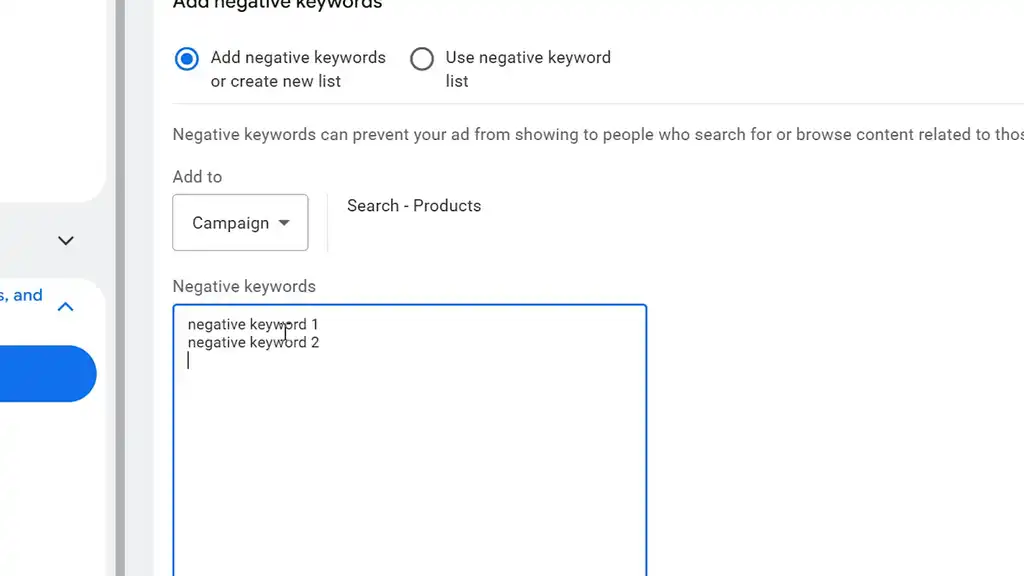
If you don’t sell a certain brand, add it as a negative. If you sell weed killer, it might be a good idea to block certain other weed-related keywords. If you sell cat products but don’t sell other pet products, consider blocking the broader pet-related keywords. Build those lists before the wasted clicks happen.
My rule at our Shopify Google Ads agency is simple: I’ll pay for a bad search term once. Never twice. The moment I find an irrelevant query, it goes onto a shared negative keyword list that applies across every campaign. That way it’s blocked everywhere, immediately.
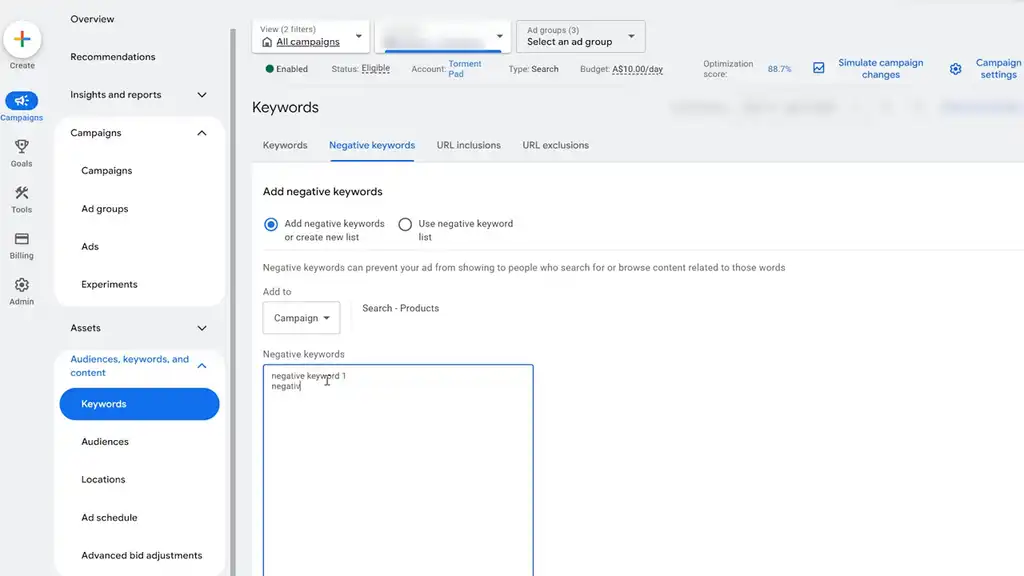
Done consistently, this alone can improve your click-through rate by 10–15% out of the gate. And a higher CTR means Google sees your ads as more relevant which lowers your cost per click over time. It compounds.
Step 7: Fix the Merchant Center Leaks Most Sellers Never Find
This last step is where most campaigns leak money without anyone noticing. Because sometimes the problem isn’t the search term. It’s the fact that shoppers see your ad and choose someone else.
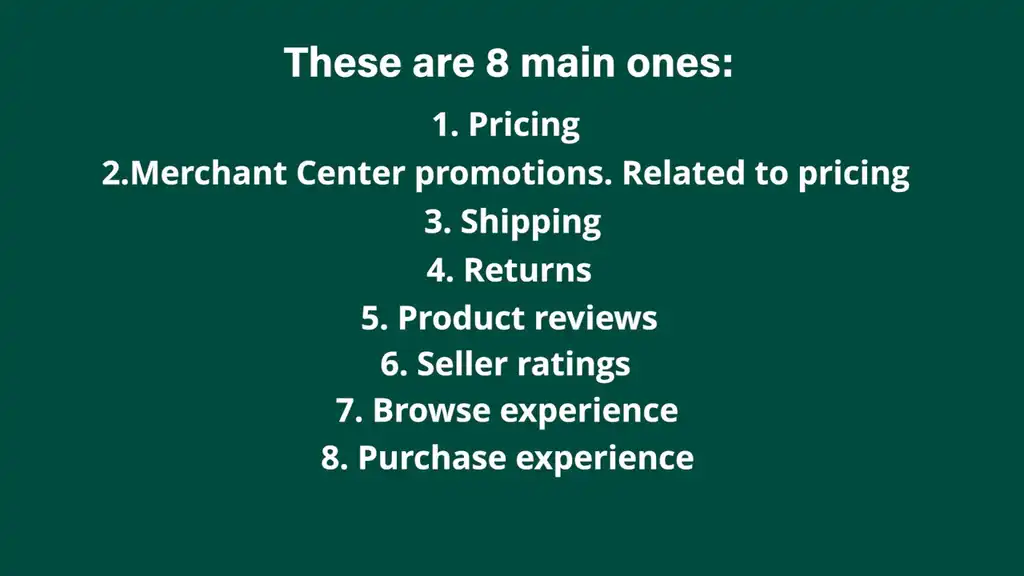
Google needs to know why people should click your ad instead of your competitor’s. Google Merchant Center looks at a bunch of things to calculate click-through rate, but these are the 8 main ones:
- Pricing
- Merchant Center promotions (related to pricing)
- Shipping
- Returns
- Product reviews
- Seller ratings
- Browse experience
- Purchase experience
Each one is a lever you can pull. This is why two stores can sell nearly the same product and get completely different results from Google Ads.
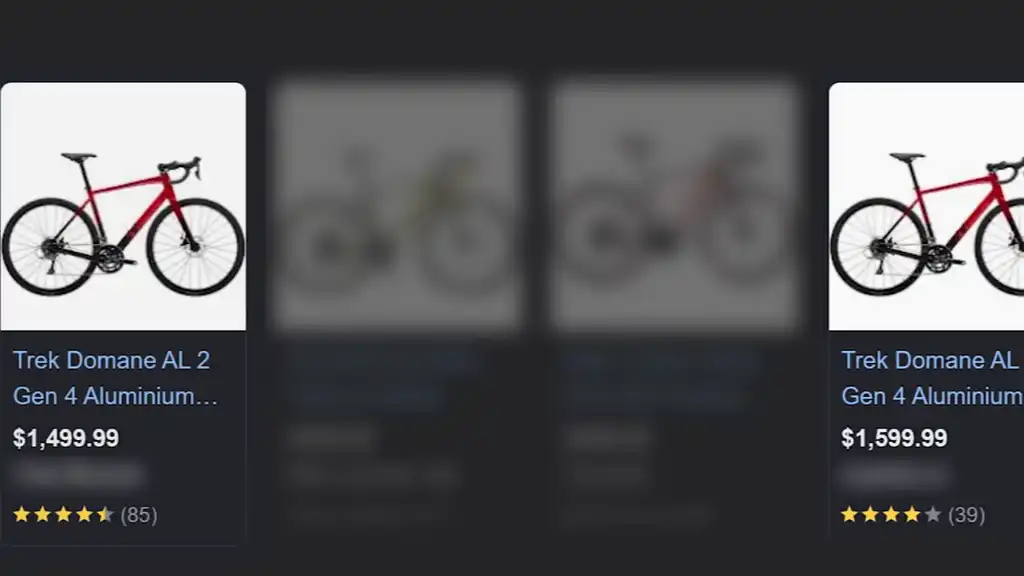
A client selling cycling gear was nearly hidden for “men’s road bike.” Their product was solid. Their title was optimized. But they were losing clicks because their price was higher than the competitor above them, who also had strong review ratings. So we used pricing monitoring software, set floor prices for products, and fed that data automatically into the Shopify store and feed. Product pricing was automatically adjusted to stay competitive, yet profitable. Their click-through rate lifted significantly. Google picked up the improved engagement signals and their position moved up along with the volume of revenue.
This is removing friction. Imagine two stores selling nearly the same product. The one that feels cheaper, safer, faster to ship, and easier to return often wins the click before your campaign settings ever get a say.
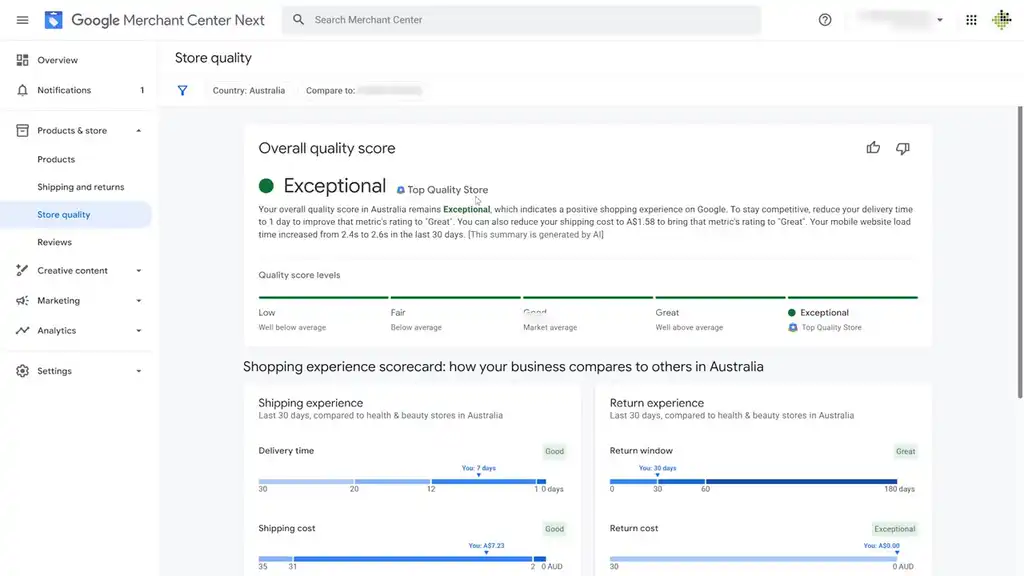
Here’s something you can do right now. Log into your Merchant Center and go to Store Quality. You’ll see exactly where you’re falling short.
Maybe your return window is 14 days and competitors offer 30. Maybe your product reviews are thin. Pick the two biggest gaps. The ones that drive the most traffic get priority. Fix them.
Even if you’ve fixed everything in this article, you’re likely making some other mistake in your ad account that’s leaking profit.
To help you fix that, I’ve created a comprehensive tutorial doing a Google Ads account setup for a real brand from scratch.
What You Should Do Next...
Get More Free Tactics
Join over 5,000 subscribers. I send what's working in Google Ads, SEO and Meta Ads, taken from the Shopify accounts we run.
Work With Us
We partner with a small number of Shopify stores each quarter to scale paid ads, SEO, and conversion rate. If you're serious about growth, apply below. If it's a fit, we'll schedule a call to map out your plan.
APPLY TO WORK WITH US