Most beginners start Google Ads with Performance Max and lose money fast. Google’s own app in Shopify encourages you to do it.
After 20 years managing and teaching Google Ads, I’ve found beginners get better results starting with one much simpler campaign first. In this guide, I’ll show you the best Google Ads campaign for beginners in 2026 including what to set up, what to skip, and exactly why.
Get Your Free Google Ads Beginner Checklist
Download the free checklist that walks you through every step of setting up your first Google Ads campaign the right way.
Why Performance Max Is a Terrible Starting Point for Google Ads Beginners
To start, you need to understand why Performance Max is a terrible campaign choice for beginners.
First, you never actually learn how to do Google Ads yourself because too much of it is automated. It’s great for getting going fast, but terrible for learning.
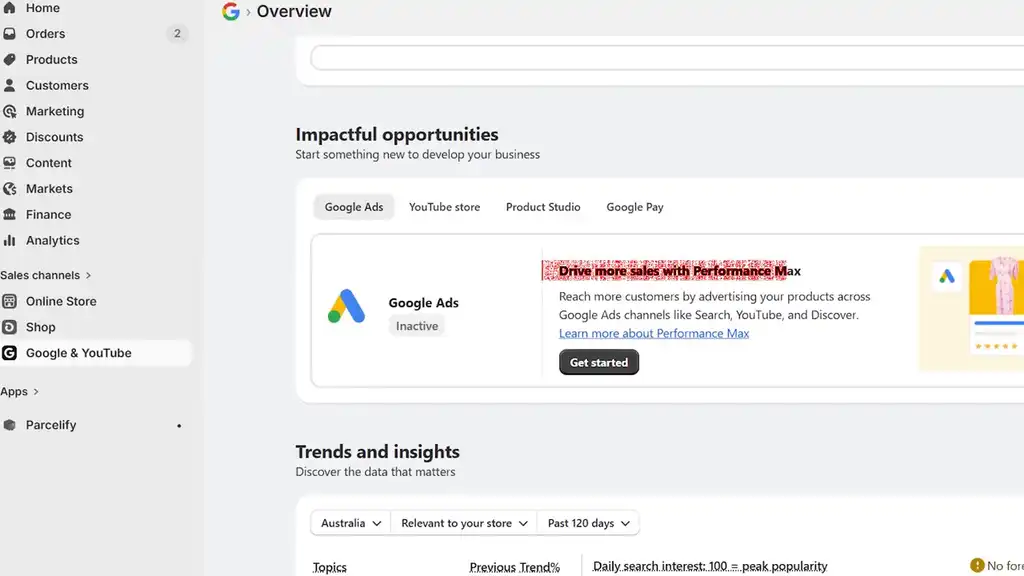
Second, your store is unlikely to grow because your tiny budget is spread thin across all the places where ads show such as YouTube, Display, Discover, Gmail, and other placements.
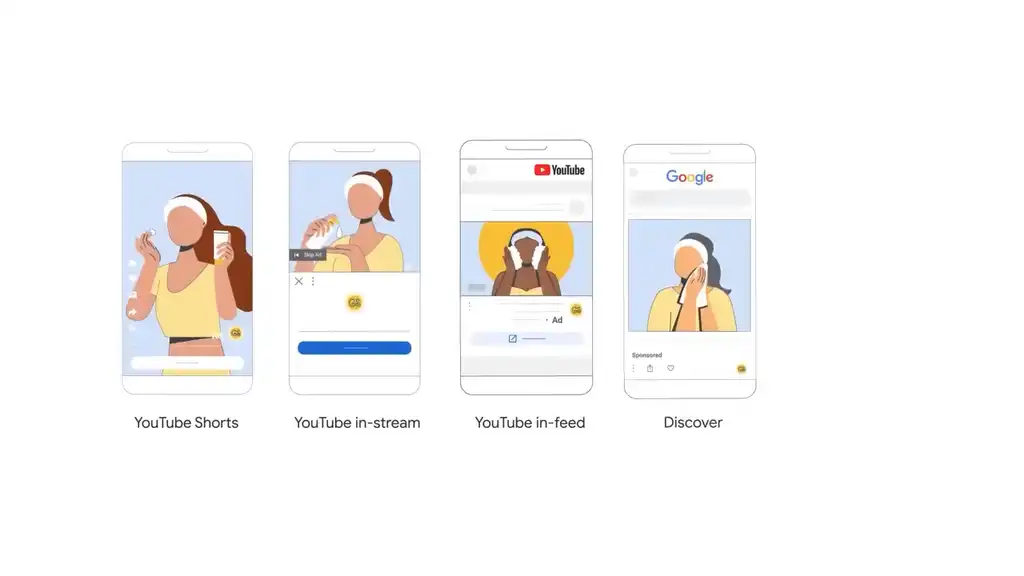
The problem with these placements for a lot of stores is people aren’t actively searching for your product there. They are demand generation, not demand capture.
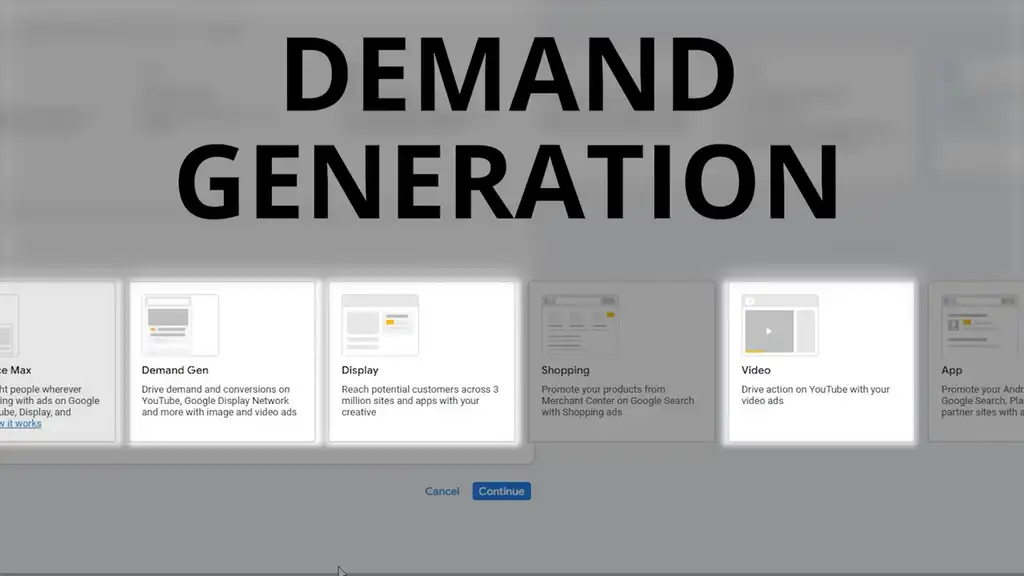
Demand generation should become a main part of your strategy later on, but as a beginner store you’ve got to focus on easier sales.
The Better Way to Start Google Ads: Choose a Search Campaign
So here’s the new and better way.
First, go to ads.google.com and sign up if you haven’t already. Second, create a new campaign and create a campaign without guidance.
This is where beginners mess up. They see Performance Max and say “ooh, I can reach audiences across all of Google with a single campaign!” No. With small Google Ads budgets, you need to focus your ad spend, your effort, and give Google the data it needs to learn fast. That rules out most campaign types, which have their use for more advanced setups.
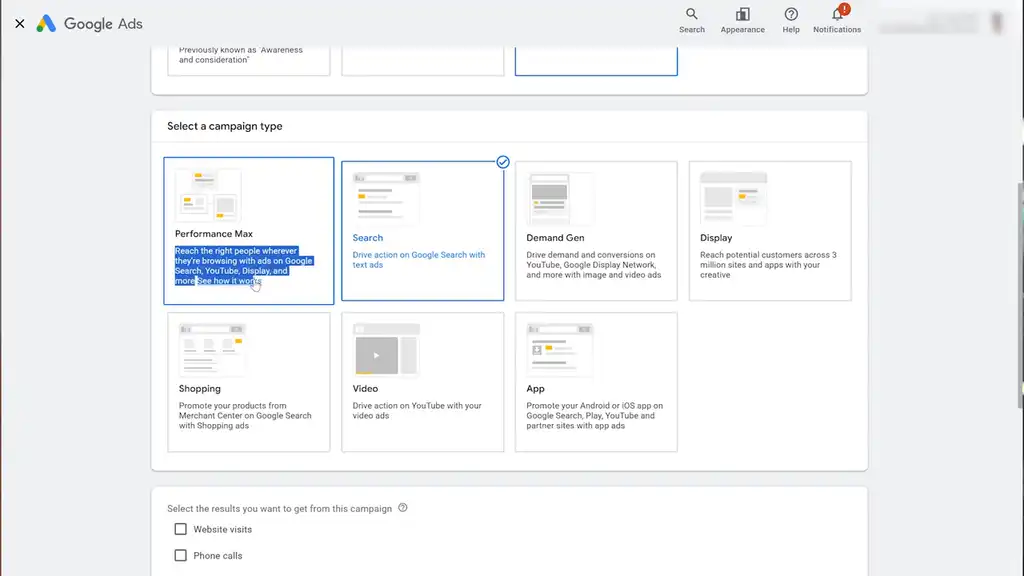
The honorary mention is Shopping, which is the other bread-and-butter campaign type for most ecommerce businesses. There are plenty of other videos teaching you how to do Shopping. But this single campaign setup gives you control.
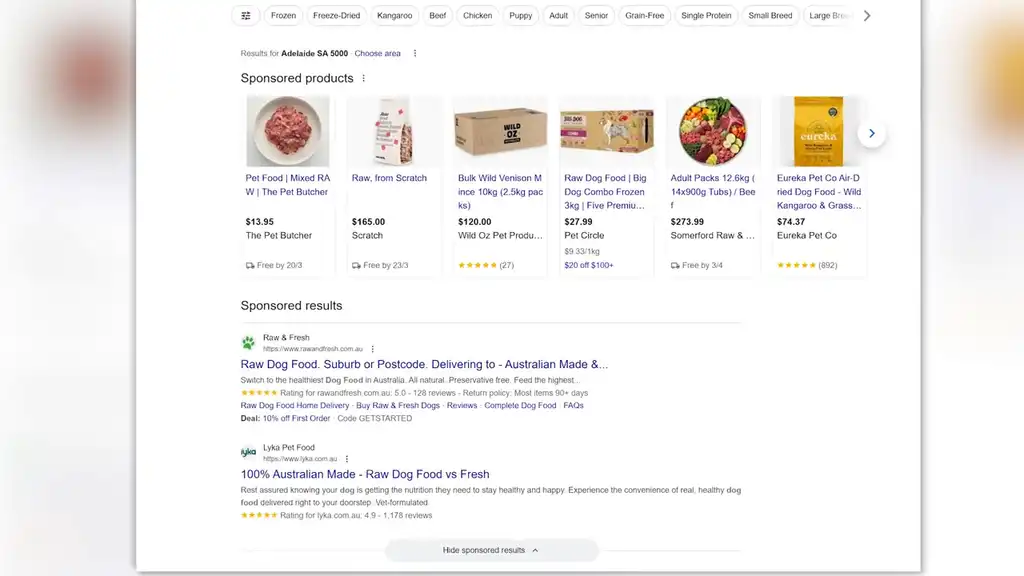
So choose a Search campaign. These types of ads show on top of Google Search results with your website, a text header, description, reviews and return policy, links to your website. You’ve seen them before, unless you’ve been living under a rock.
Step-by-Step Google Ads Campaign Setup for Beginners
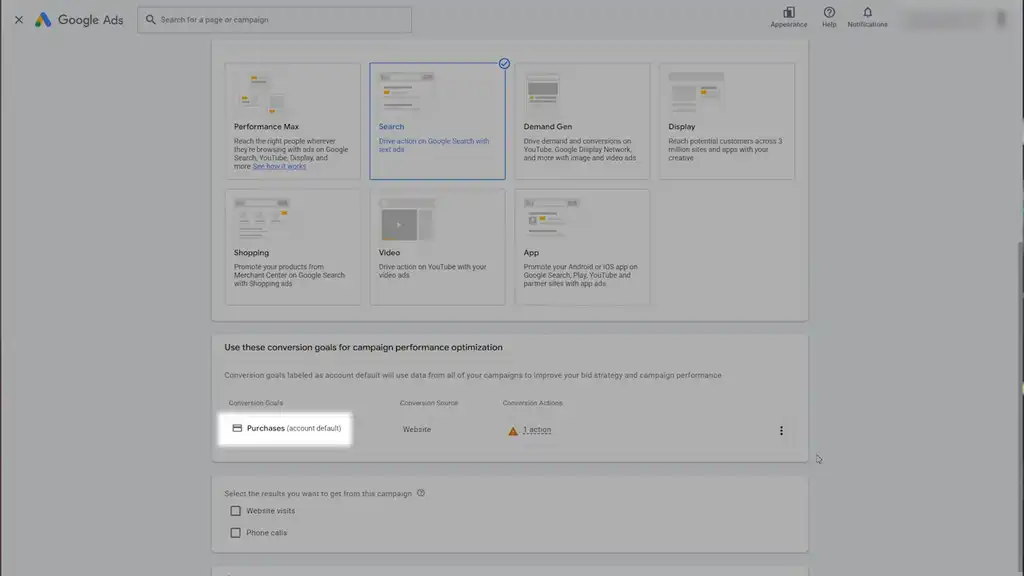
Conversion Goal: Purchases
For your conversion goal, select Purchases. Skip the next screen.
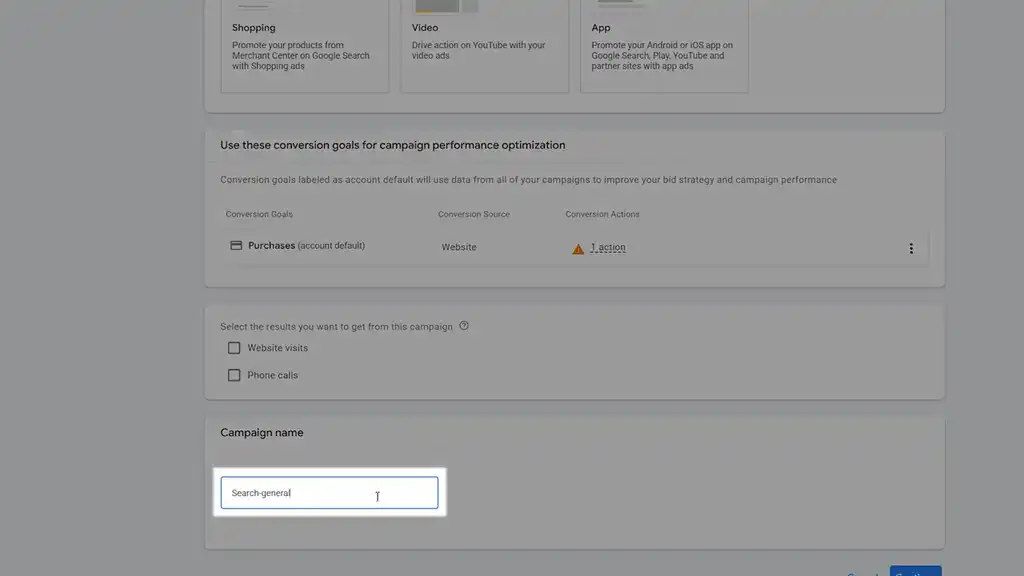
Campaign Name
Give your campaign a name. “Search general” or “Search primary” are great names. If you’re only targeting one country, add that too.
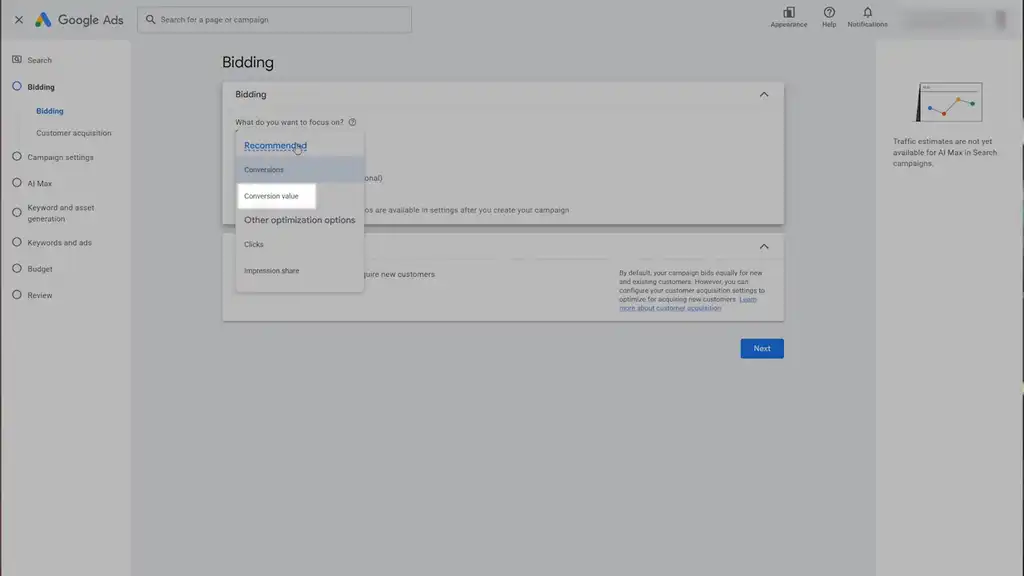
Bidding
In Bidding, I recommend choosing Conversion value. You can add a specific target later when you’re ready.
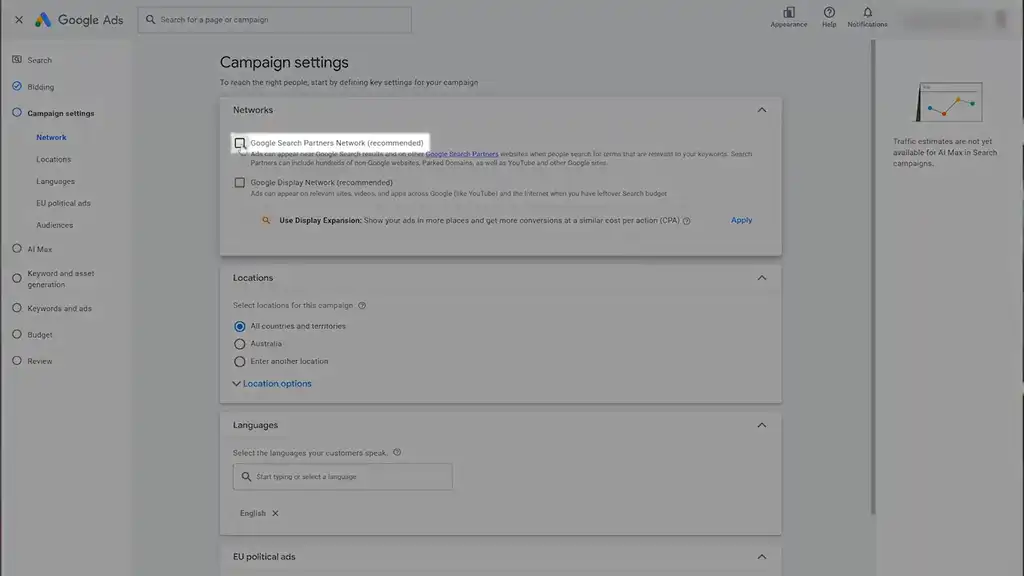
Campaign Settings: Networks
Uncheck Google Display Network. This is a Search campaign, so we don’t want other display ads confusing the data. Leave Google Search Partners Network unchecked as this gives campaigns the best chance of Google Ads success for beginners.
Locations
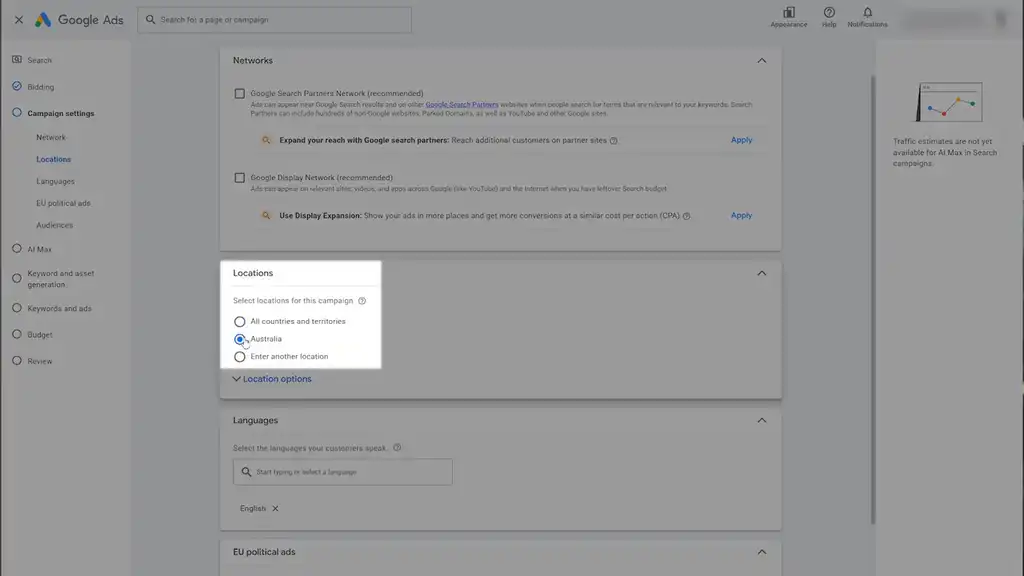
Put the locations you sell to here. If you sell worldwide, just put in your best performing country so your budget doesn’t get spread thin. Don’t miss the hidden dropdown. Make sure you select Presence to only target people in those regions.
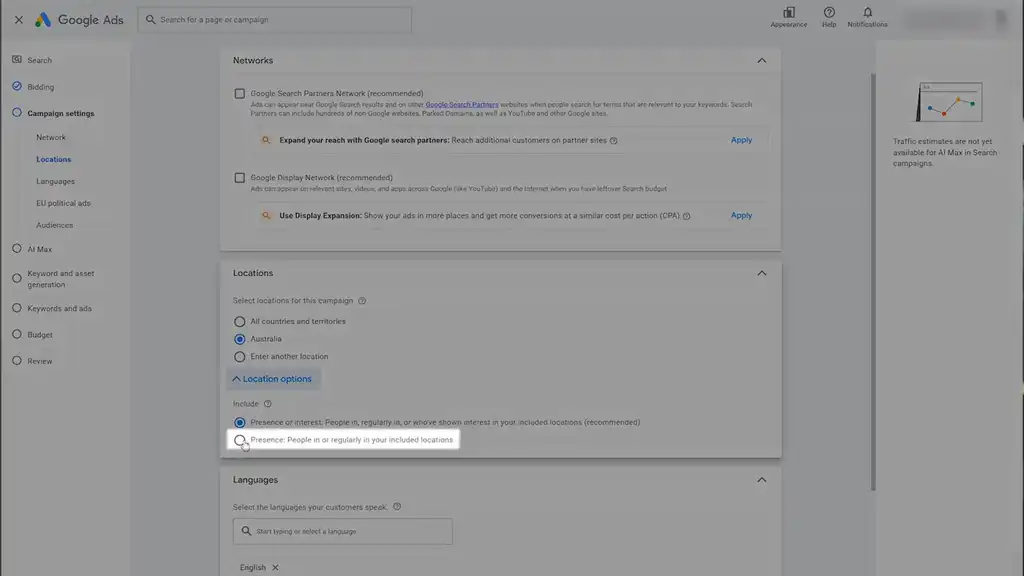
Language should match the language of your ads.
EU Political Ads & Broad Match Keywords
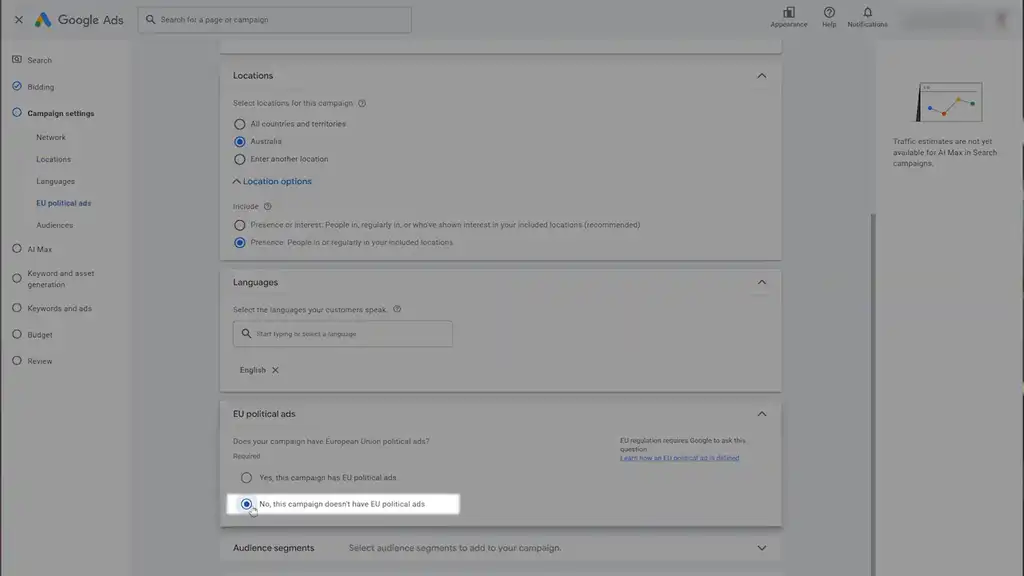
For EU political ads, select NO.
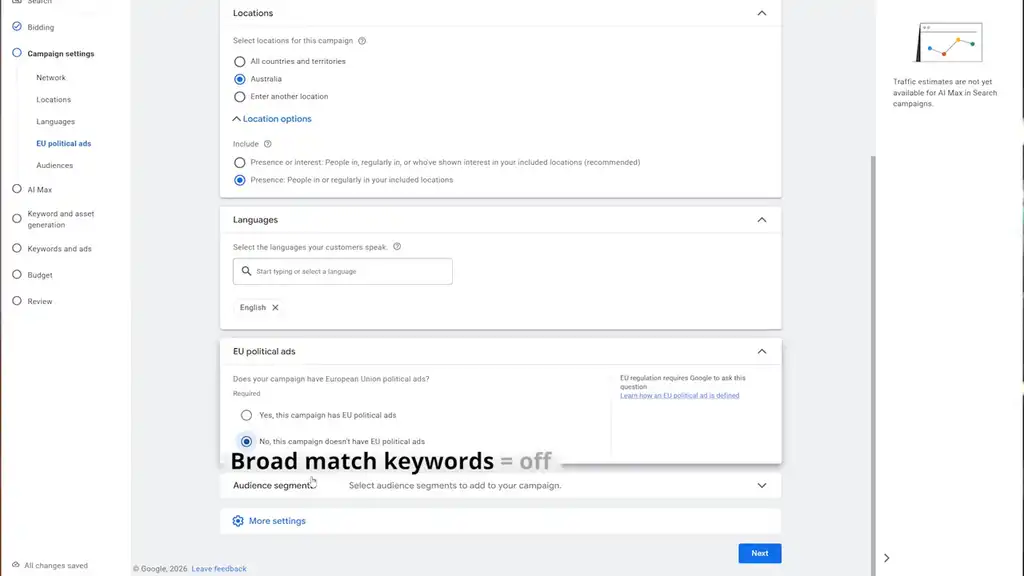
If you see Broad match keywords, select Off.
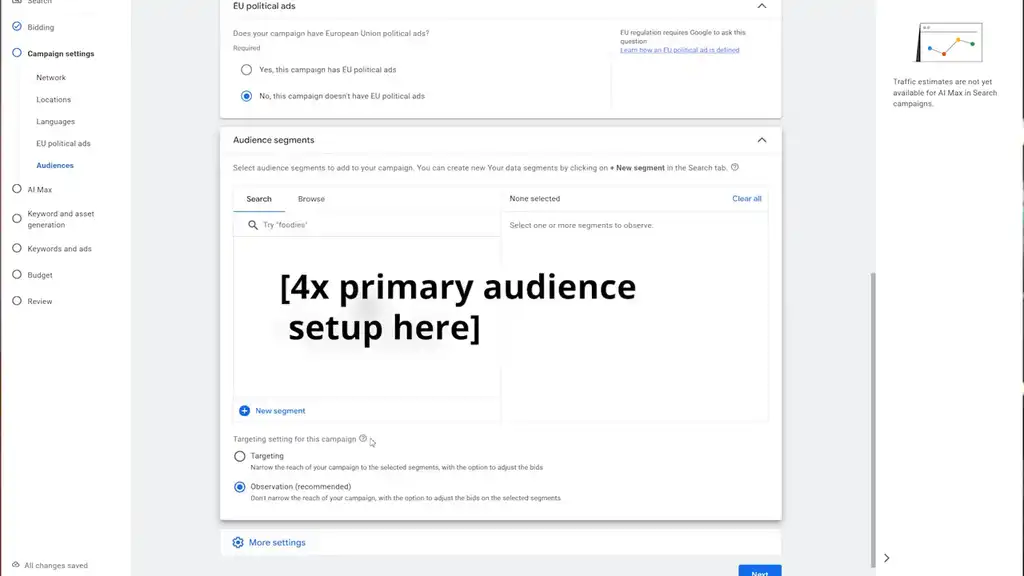
Audience Segments
I recommend a 4 primary audience setup to begin with, which I cover in my longer Google Ads tutorial. You can add those in later.
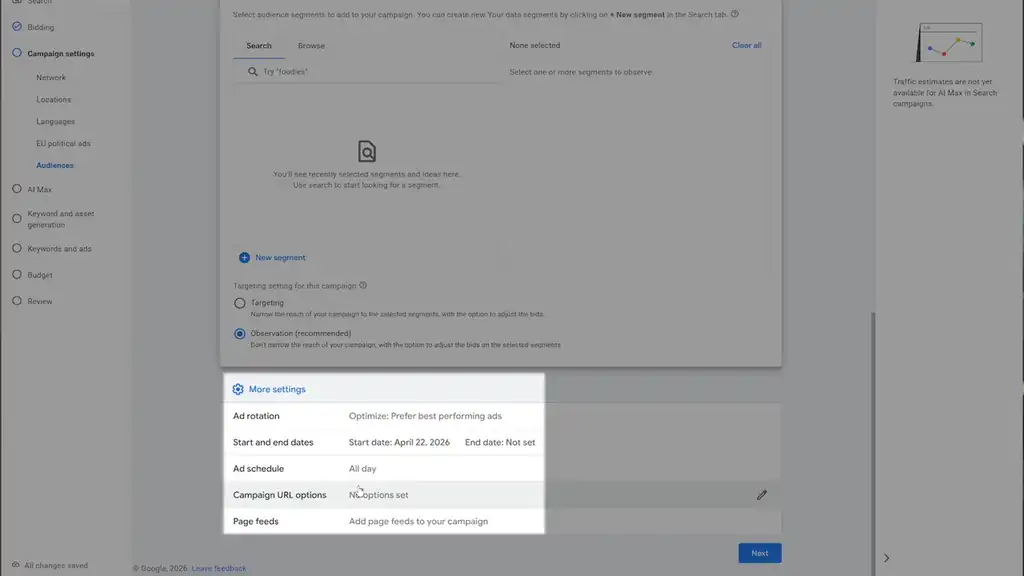
More Settings & AI Max
For More settings, leave these as standard.
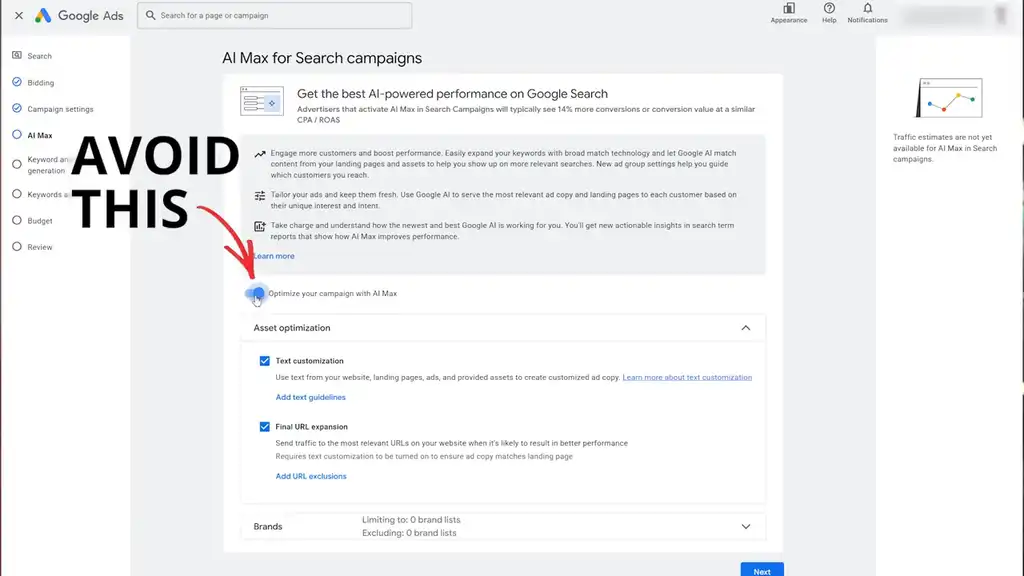
Avoid AI Max settings like the plague as a beginner. It’s an advanced strategy.
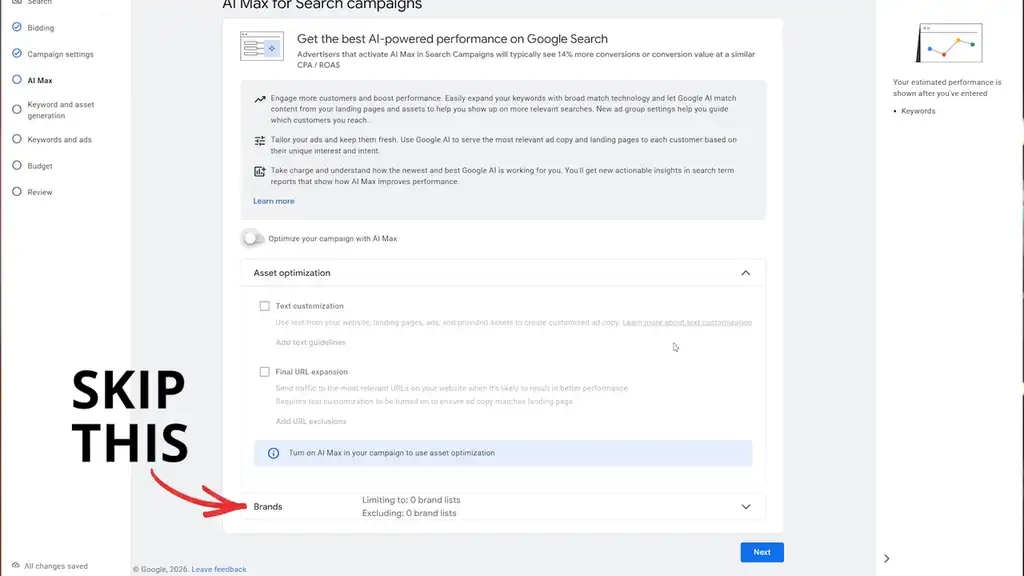
Skip the rest of that.
Keyword Strategy for Google Ads Beginners
For keyword and asset generation, you can use Shopify’s built-in AI tool to get keyword suggestions, or plug in your product page to ChatGPT and ask for suggestions.
Either way, I recommend you start with your best selling products and the main keywords that are used for those products.
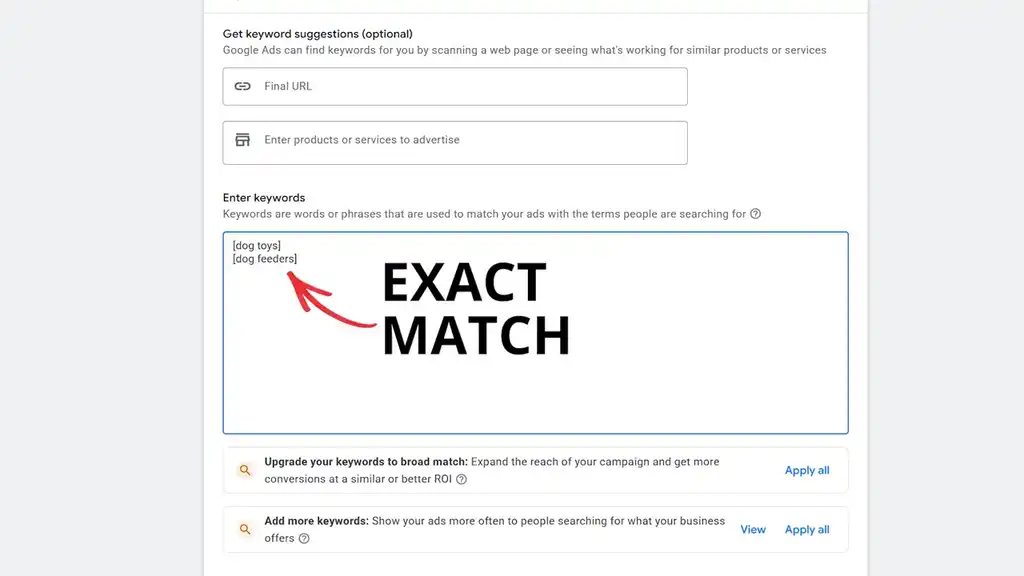
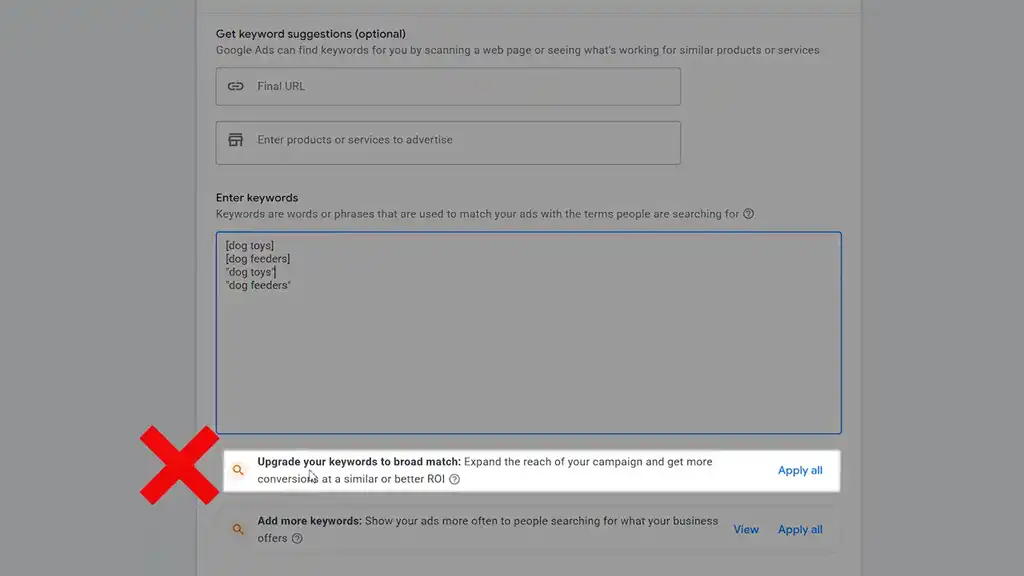
Exact Match Keywords
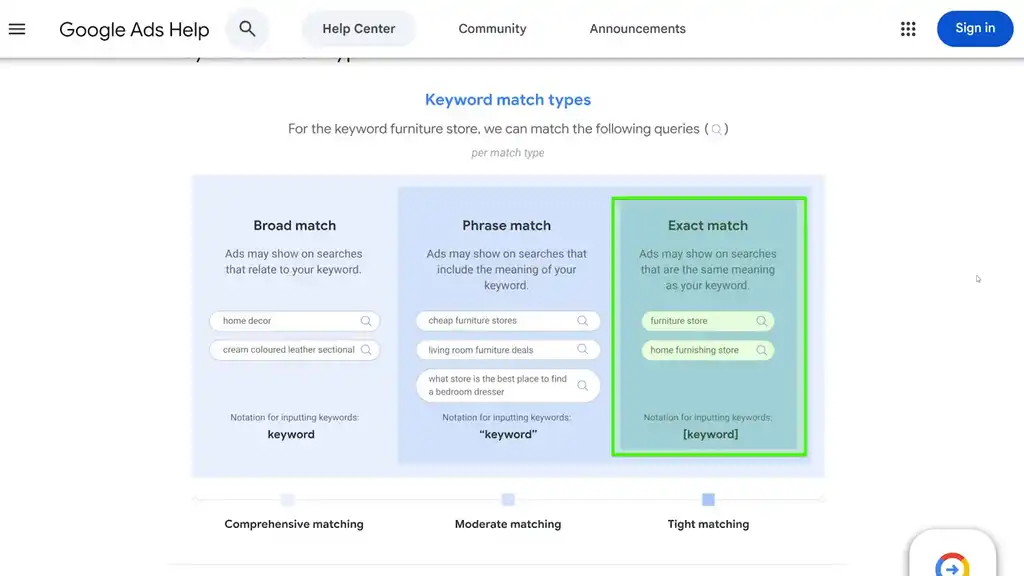
Wrap each of the keyword phrases in square brackets to get exact match keywords. They’re the most precise of the 3 keyword types. You want this for control. Seeing a pattern here?
Phrase Match Keywords
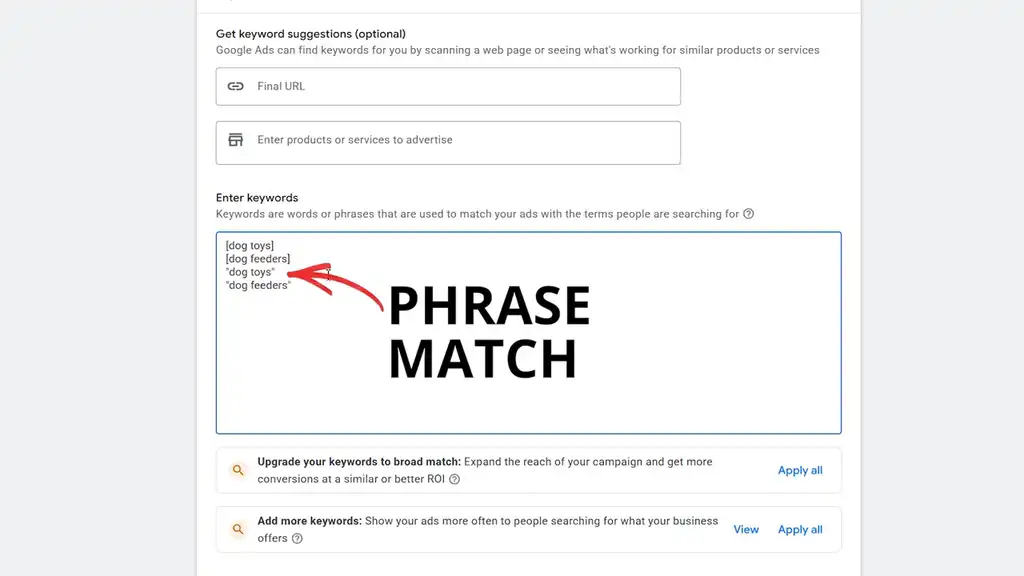
For beginners I also suggest 1–2 phrase match keywords, wrapping your best keyword for your product in apostrophes. This is one step broader and makes your ads appear for searches with a word before or after the phrase, like “best dog toy feeder” or “dog feeder reviews”.
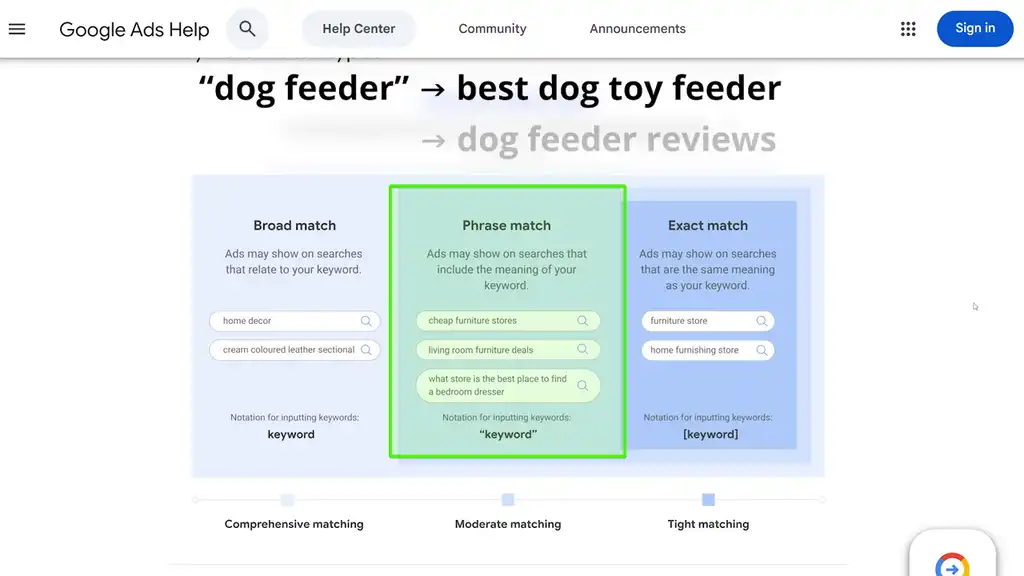
Do not upgrade your keywords to broad match. That’s an advanced strategy.
Writing Google Ads Copy: Use a Custom GPT
For actually creating the ads, use this custom GPT I built. You can access it for free here.
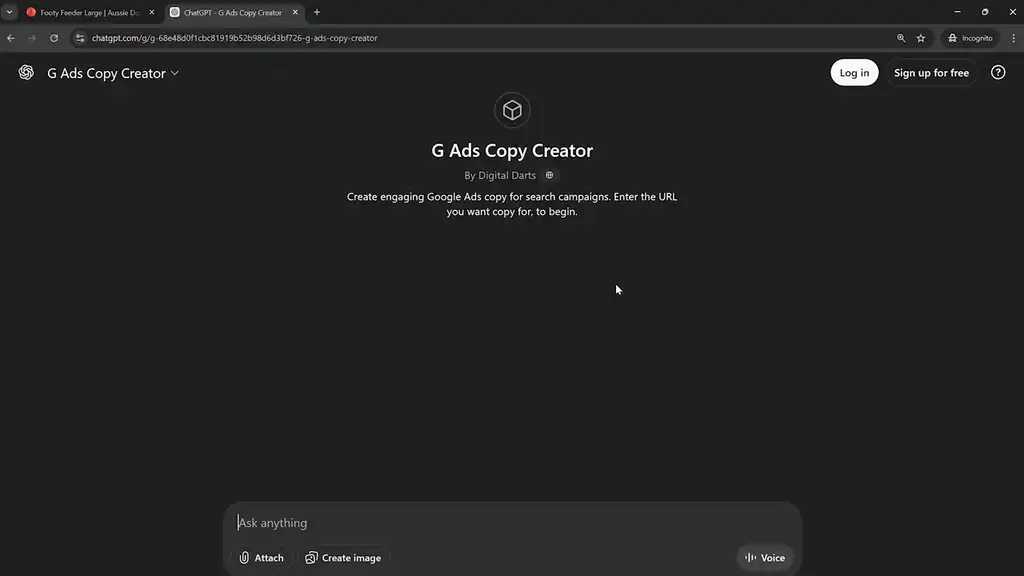
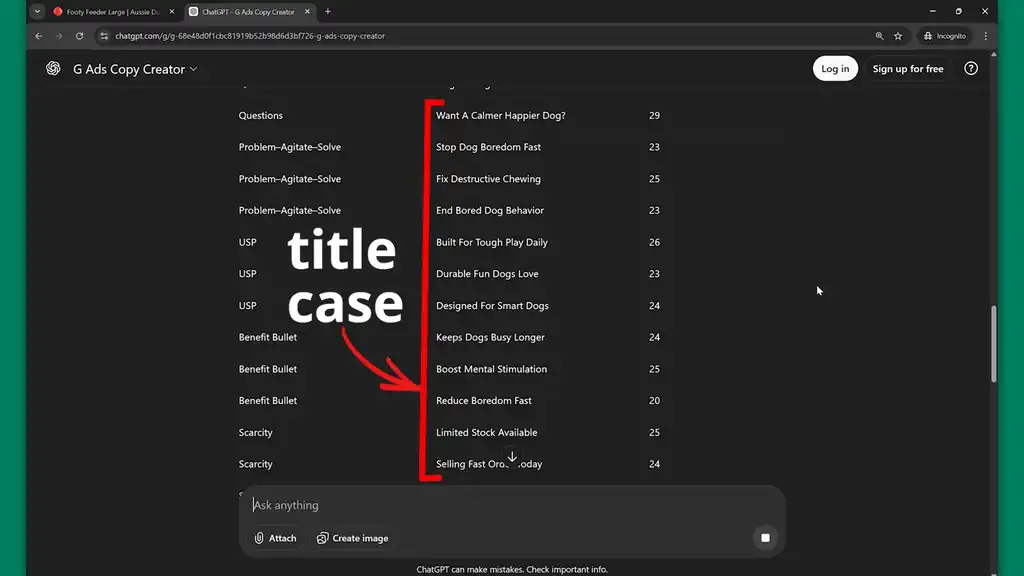
Let’s say I’m selling a dog toy footy feeder. I take the product URL, plug it into the GPT, choose brand tone, add some keywords to target, and it gives me some great ad copy. I’ll still need to check and refine them, but it’s already done that heavy lifting for me and given me different angles to work with.
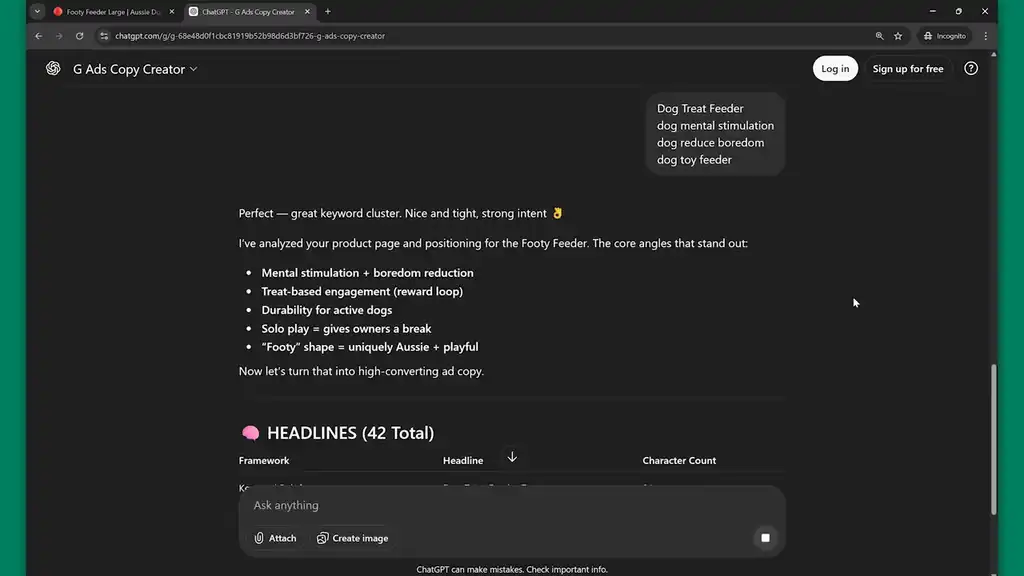
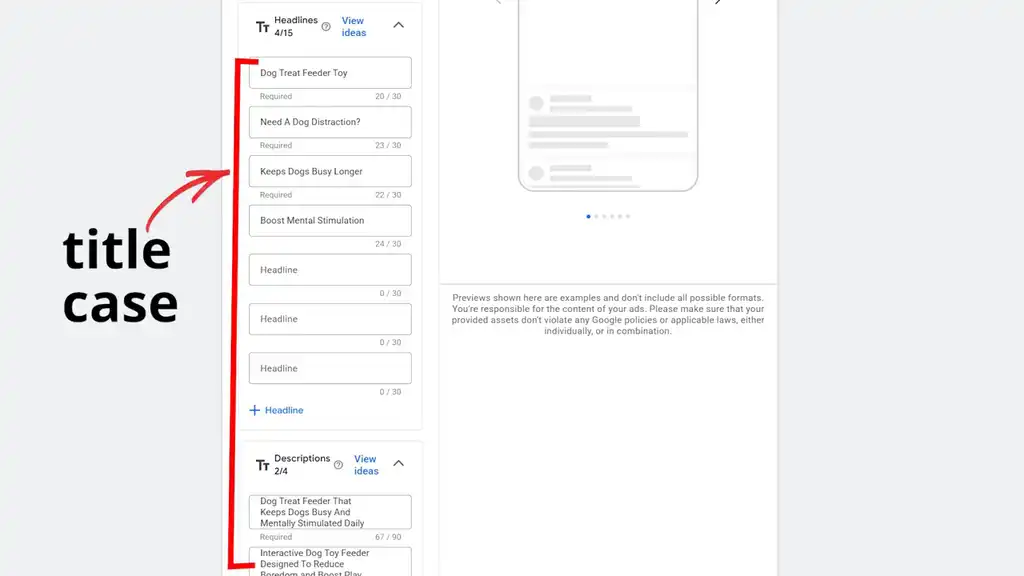
I recommend starting with 4 headlines and 2 descriptions. One headline is keyword rich, another headline is a question, the other two are benefits. Make your descriptions benefit and feature rich. For both headlines and descriptions, stick to title case which the GPT I created for you does automatically.
Ad Extensions, Budget, and Publishing Your First Google Ads Campaign
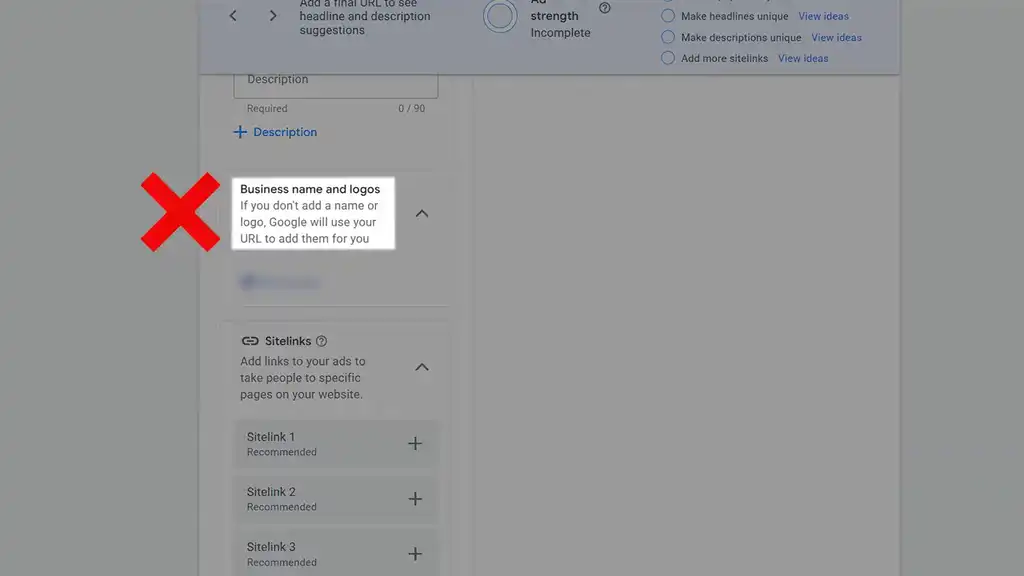
Business Name and Ad Extensions
Business name is set at the account level.
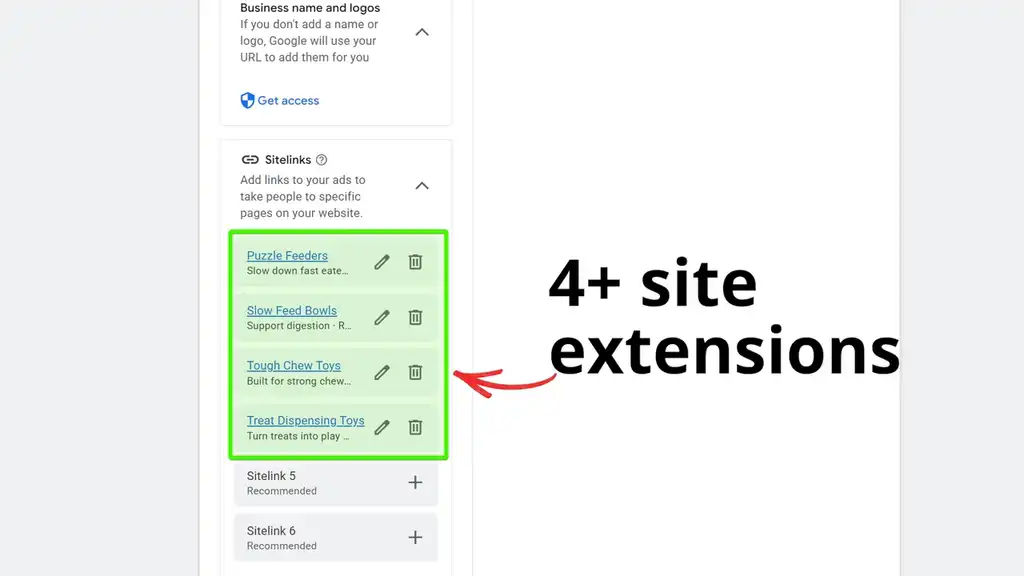
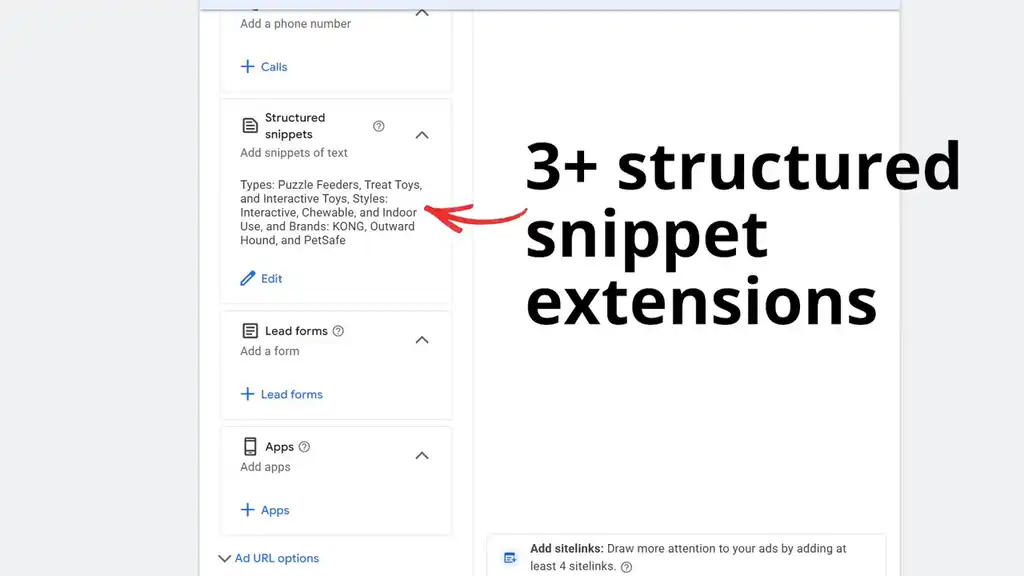
Create at least 4 sitelink extensions,
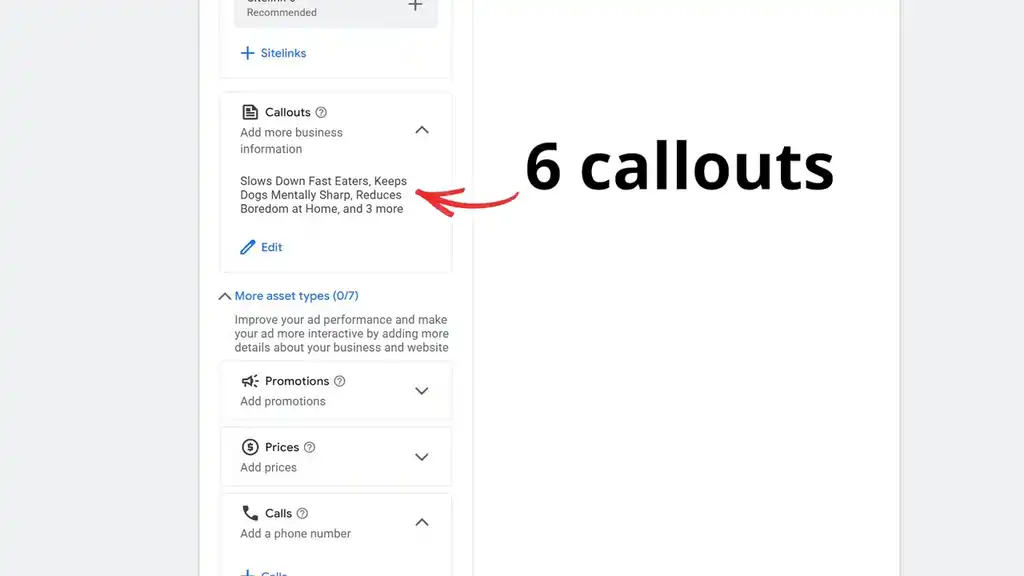
6 callouts,
and 3 or more structured snippet extensions.
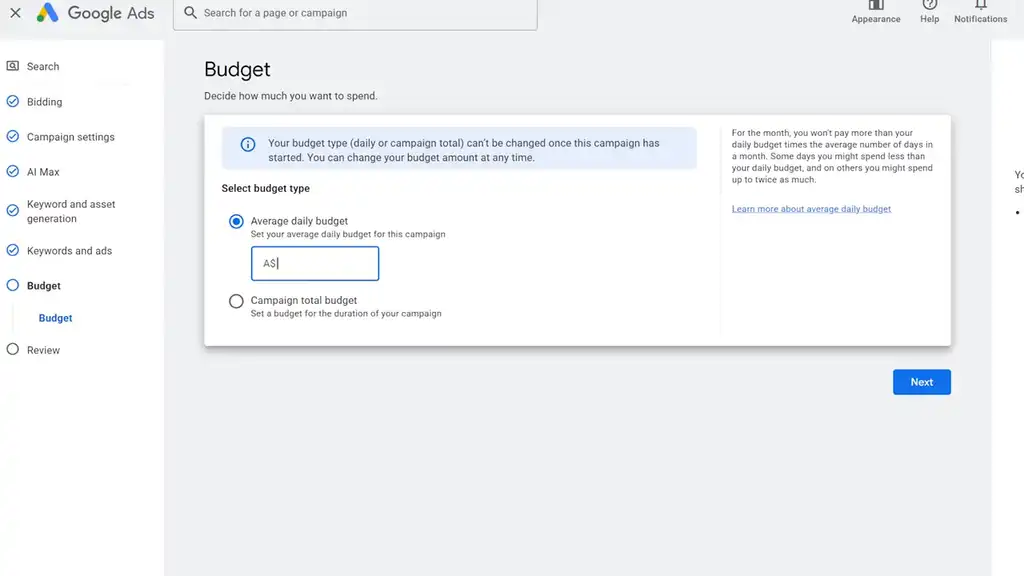
Setting Your Budget
Budget depends. Be aware that Google may spend up to 2x the daily budget you set here, but it won’t exceed your monthly budget.
Publish! Well done and congratulations. Take a big breath and give yourself a pat on the back.
Making Changes After Publishing
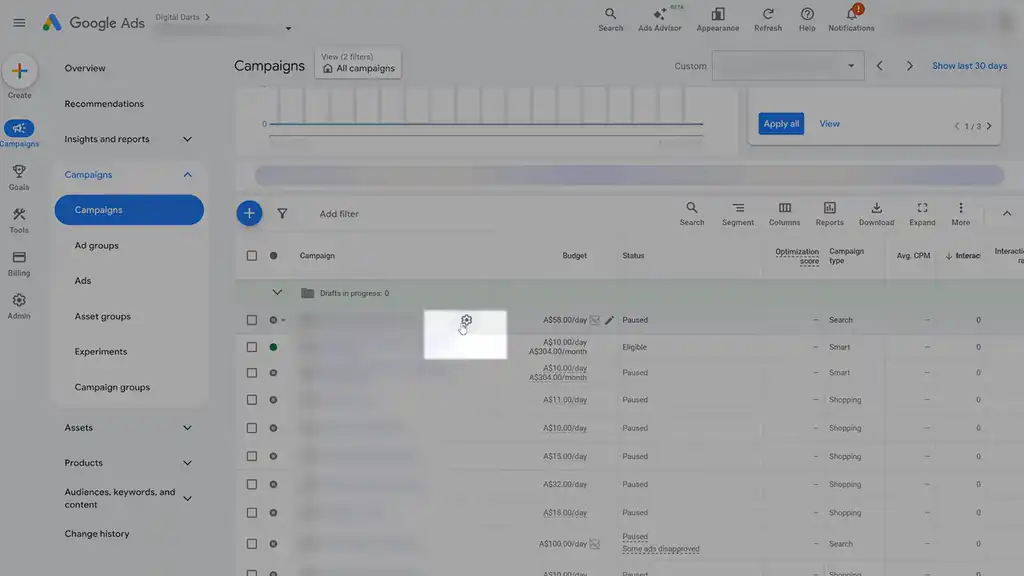
You can change any of the campaign settings by clicking the cogwheel next to the campaign, or the budget here.
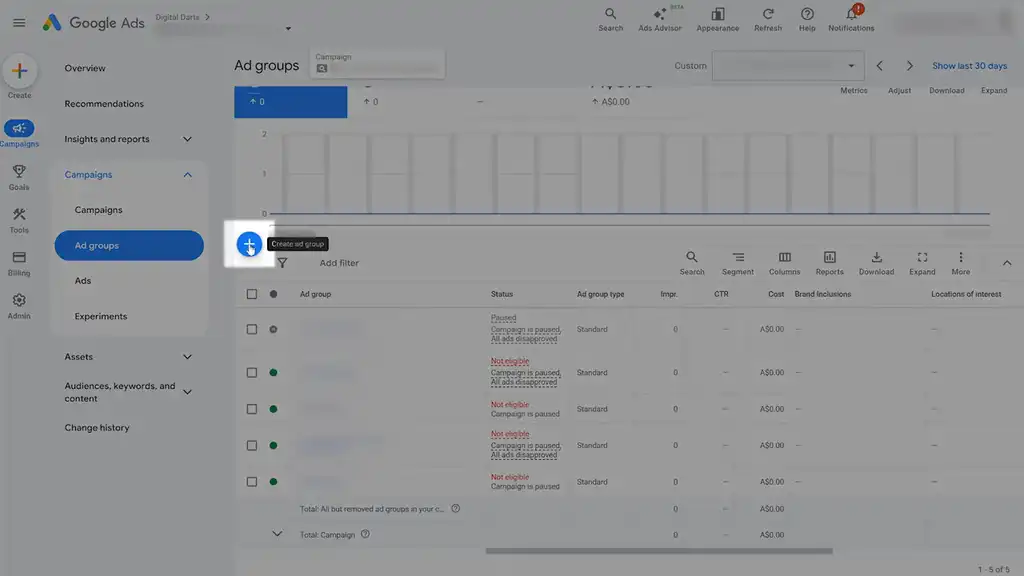
You can also add more ad group themes inside your campaign. Just keep it to one theme per ad group.
Once you’ve set up a great Search campaign, you then face the next problem of rising ad competition and high ad costs. Getting your first campaign live is just the beginning. Read this next article on how staying profitable is the real game.
What You Should Do Next...
Get More Free Tactics
Join over 5,000 subscribers. I send what's working in Google Ads, SEO and Meta Ads, taken from the Shopify accounts we run.
Work With Us
We partner with a small number of Shopify stores each quarter to scale paid ads, SEO, and conversion rate. If you're serious about growth, apply below. If it's a fit, we'll schedule a call to map out your plan.
APPLY TO WORK WITH US