
If you have poor Shopify meta descriptions and titles, like most stores, you may see organic search visitors increase 30% by following this tutorial. I see good SEO tags regularly increase traffic almost overnight with our Shopify SEO clients.
Google alters search snippets today more than ever, making it difficult to control your marketing message. A study by Cyrus Shepard shows Google rewrites 61% of title tags. I rarely hear anyone bring this issue up in a discussion about branding. Anywhere from 10-90% of visitors, depending on your organic presence, first encounter your store in search. This gives an enormous opportunity to influence first impressions of your brand.
Good title tags and meta descriptions have been fundamental to better organic rankings forever in SEO. When you write good copy that appeals to people, you also get more clicks right away from the same search volume.
Unoptimized titles and meta descriptions are a common SEO mistake that anyone can fix with the proven tactics I’m about to share with you. This guide teaches you how to write for Google and people so you get better rankings and click-through rates. You’ll learn how to research keywords with customers in mind, find the pages on your store that are letting you down, and write titles and meta descriptions that open the floodgates from organic search.
The part that used to take a week now takes an afternoon. I built SEO Expert: Digital Darts to do the tedious half of this job. It scores every page against the same rules taught below, shows you the exact pages that fail, and fills in hundreds of titles and descriptions from a template you write once. I’ll show you both paths, starting with the fast one. The thinking is still yours. The typing is not.

What Are Shopify Titles?
The <title> tag in Shopify can include anything, but it should be descriptive of the page’s content. For a product page, the title often includes the product name and store name. Titles are seen in the browser tab and appear prominently as the large, blue hyperlink in search engine results.
A title in the HTML of a page looks like:
<header>

<title>Your title is here</title>

</header>
What Are Shopify Meta Descriptions?
Meta descriptions in Shopify are a concise snippet of text displayed in search engine results after the title tag. It is crucial for webpages, product pages, collection pages, and blog posts on the Shopify platform. To optimize your Shopify site, ensure each page has a unique meta description that utilises clear and straightforward language. By crafting compelling Shopify meta descriptions, you can improve click-through rates and provide users with valuable information about your content.
A meta description in the HTML of a page looks like:
<header>

<meta name="description" content="Your description is here" />

</header>
Control Your Snippets
In order to write perfect meta descriptions and titles, you need to first understand how the two SEO tags work. A “snippet” in search results describes the content of a page:

Google designed snippets to highlight content of a page that relates to a user’s search query. In order to do this, a snippet can vary with different searches for a single page.
There are three ways you can shape the snippet:
- Structured data. Also known as schema or markup, structured data defines the content of a page. For example, a review can be marked up so Google knows it’s a review. Our SEO manager Emily wrote for Search Engine Journal about the structured data to include on your store.
- Content of the page. This includes product descriptions, FAQs, collections content, articles, and any text on the page. The h1 tag is one of the biggest influencers.
- Titles and meta descriptions. This is what the guide is about.
Get titles and meta descriptions right on the important pages of your Shopify store and you will profit. If you fail to write good versions, though it’s not guaranteed, Google is more likely to pick the text to display. This sucks because people can write copy better than AI.
Here is the same product page twice. On the left, the search description was left empty, so Google grabbed the first line of the product copy and trailed off mid-sentence. On the right, someone wrote 44 characters of title and 148 of description on purpose:
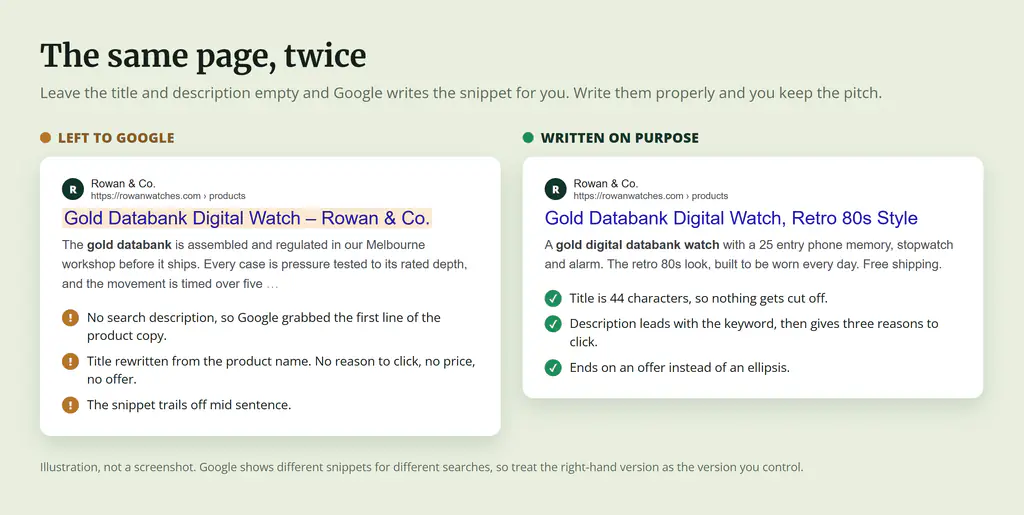
Most websites give little thought to the titles and meta descriptions of their pages. Since Google’s goal is to improve the user experience, AI is required to improve these snippets. If you follow this guide for your Shopify pages, you will create snippets Google wants to use.
Find Every Broken Title and Description First
Before you write a single word, find out which pages actually need the work. On a 40 product store you can eyeball it. On a 400 product store you cannot, and this is where almost everybody stalls. They optimise the ten pages they can remember and leave the other 390 to Google’s imagination.
Install SEO Expert: Digital Darts and it scans every product, collection, page, blog and article on your store, then scores the lot.
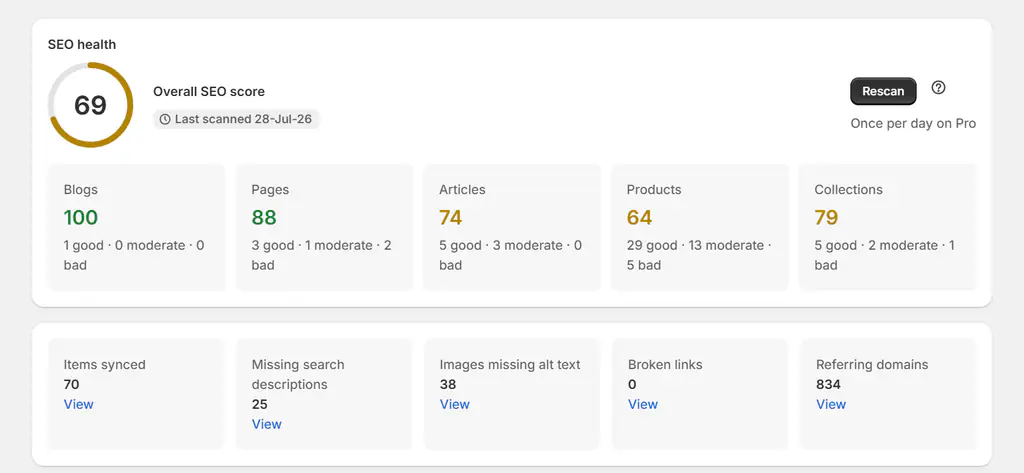
The score is one number for the store and one per content type, so you can see at a glance that the products are dragging while the pages are fine. Underneath it, the issues list breaks the score into the exact problems, sorted by how much they hurt.
The rules it checks are the same ones this guide teaches:
- Search title is longer than 60 characters and will be cut off in Google.
- Search title is under 30 characters, leaving unused space in Google results.
- No search description, so Google will pick its own snippet.
- Search description is longer than 160 characters and will be cut off.
- Search description is under 70 characters, so the snippet looks sparse.
- Multiple items share the same search title.
- Multiple items share the same search description.
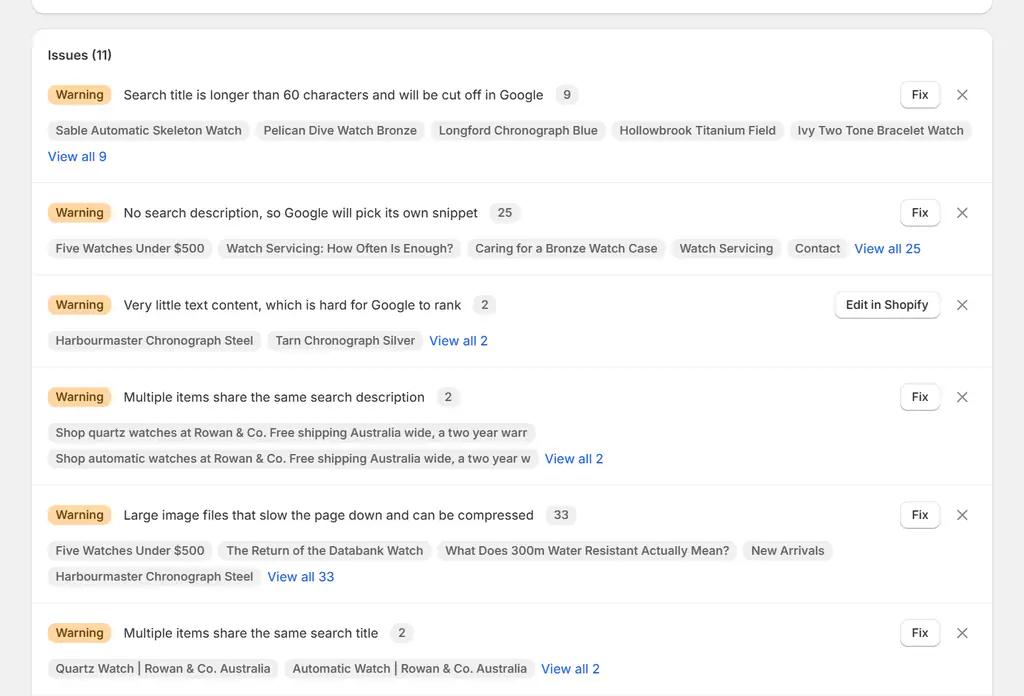
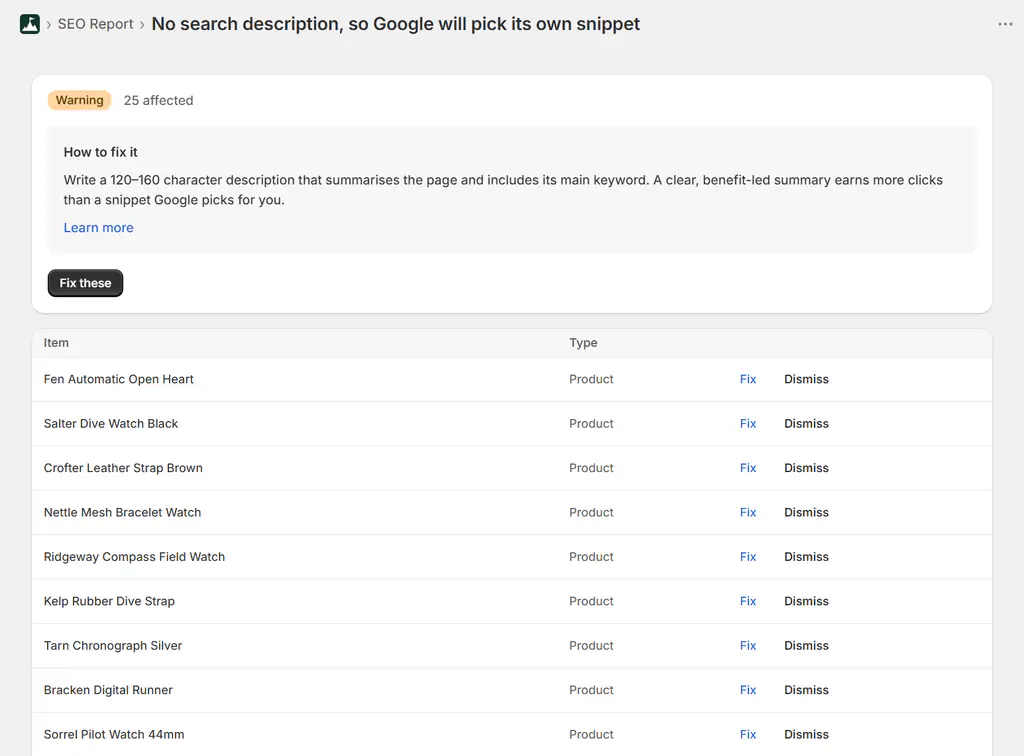
Click into any issue and you get the list of pages it applies to, plain-English instructions for the fix, and a button that takes you straight to the editor with those pages filtered. No spreadsheet, no crawl to schedule, no guessing which 25 of your 400 products are missing a description.
Rerun the scan once you start making changes and you can watch the score move.
Now you know what to fix. Next you need to know what to write, and that starts with keywords.
Keyword Research: It All Begins with Search Query Analysis
You start with a search query analysis because it determines what search queries you want to rank for. The analysis determines what you write, who ends up being your competitors, and the SEO of everything else that you do.
The best place to begin search query analysis, or what you might think of as “keyword research”, is not a keyword tool. Look at the page you are optimising then ask yourself:
If someone was to discover only this page on the Internet then walk away happy, what would they look for?
Write down all answers. You should have multiple answers for one page.
- An online store called “Jill’s Fashion Store” answers the searches “jills fashion store”, “online fashion store”, or possibly “women’s fashion store”.
- A collection page of leather jackets could answer the searches “leather jackets”, “motorcycle leather jackets”, or “leather jackets for men”. For “motorcycle leather jackets” to apply, every product in the collection should be motorcycle-focused otherwise the shoppers may leave frustrated.
- A product page selling the Vintage Digital Gold Databank watch made by Casio could answer, “vintage digital gold databank”, “gold casio watch”, or “vintage digital watch”. The “casio watch” search is not answered by the product page because the page is too specific. Someone searching “casio watch” is unsure of what they want and should receive a page from another website with a list of casio watches and information about the brand.
You want to solve a searcher’s problem better than other websites. Fail to do this and SEO becomes hard. Google’s algorithms can and will detect that a competitor answers the search query better than your website and so it should outrank you. Keyword research should leave you stimulated with a host of ideas to improve a page to better serve visitors.
Once you have a list of keywords to optimise the page for, type them in the Google Keyword Planner tool, selecting your target countries. You will get an estimate of search volume, competition in Google Ads, and insights into seasonal fluctuation.

There are almost 10,000 searches alone for “gold casio watch”. That’s a lot.
I recommend you narrow the query to lessen competition by seeing other keyword suggestions. To filter through the thousand keyword ideas, I change the keyword view to group view. I see there’s a “Casio Gold Men Watch” group containing the keyword “casio gold watch mens” that aligns with the product:

The competition column contain “Low”, “Medium”, and “High” values is just for Google Ads. There’s no right competition level to consider when using this information for SEO.
High competition means there’s a lot of advertisers, relative to other keywords, who spend money on the keyword. When there are a lot of advertisers for a keyword, that is a good hint they are making profit. An advertiser will pay more for a keyword because it makes financial sense for their business. On the other hand, low competition means less advertisers compete for user attention, which distributes more clicks to organic search results.
A keyword research strategy to judge SEO competition is to search your potential term in Google. Look at the organic results, not the ad results or other snippets like images.

Do you see “casio”, “watch”, “gold”, or “mens” in the titles and descriptions of these pages? Hardly. That’s one indication of low competition.
A second quick factor to look at in search results is the types of content already ranking for the query. People’s intention behind the search query can be judged by the type of search results. If you want to rank a product page for the keyword, are product pages littered in the top five results? If you’re creating an article, are some articles in the top five results for your target keyword?
It’s a waste of time trying to rank for a keyword when your content doesn’t align with the intent of users and existing search results. A product page for a casio watch will never rank for “casio” because the intent is broad. Searchers would be unhappy.
We also want to have competition with poor backlinks since it is easiest to rank for such keywords. One listing is Asos who has a large link profile to the whole domain. I know the brand and link profiles of such large brands off the top of head, but you can use the Ahrefs SEO Toolbar to review backlink metrics. It’s awesome to not see the official casio.com store ranking high since it is the official brand, which is difficult to compete against.
A second strategy to incorporate in your keyword research that judges competition is to do a keyword difficulty analysis using Ahrefs.com. A low number of backlinks to the page, or homepage of these top ranking websites, means low difficulty and low competition. Our keyword gets a difficulty of “0”, which means ahrefs estimates you’ll need very few or no backlinks to rank in the top 10 for this keyword.

You want to balance search volume and competition. In a perfect world you optimize for high search volume (1000+ searches per month) and low competition, but there too many websites today who’ve done some SEO for that to be true. So my blanket rule is to go for keywords with some search volume and moderate to low competition.
Now you know what to go after, let’s optimize your titles and meta descriptions.
How to Bulk Edit Shopify Title Tags and Meta Descriptions
Shopify lets you edit one page at a time, buried at the bottom of each product, collection and page editor. That is fine for five pages and miserable for five hundred. It also gives you no way to see, in one place, which pages are missing what.
The app puts every page of one type in a single table with the product name, the search title, the search description, and a score out of 100 for each row. Sort by lowest score first and the worst pages float to the top.
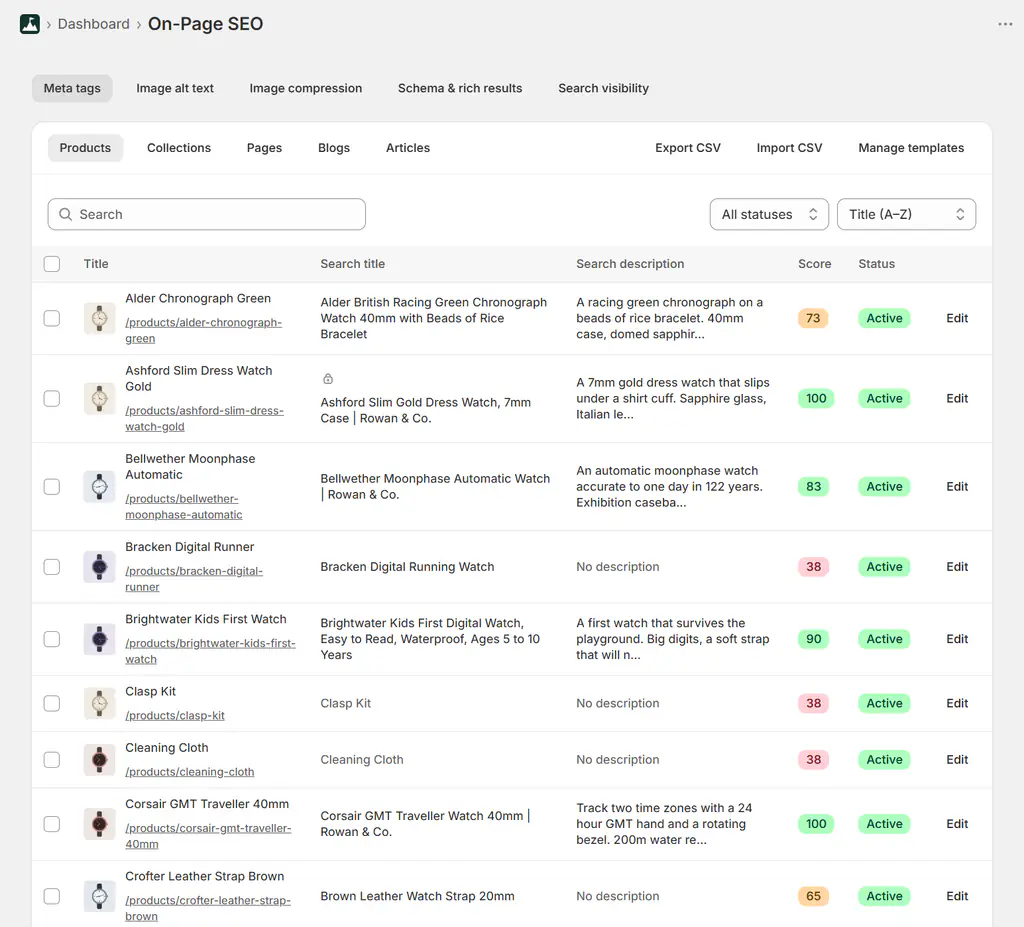
“No description” in grey tells you instantly which pages have handed the snippet to Google. The tabs across the top switch between products, collections, pages, blogs and articles, so nothing on the store hides from you.
Click Edit on any row and you get the editor with a live Google preview and a character counter on both fields. Here is a title I deliberately let run long. The counter turns red at 77/60, and the preview shows you exactly where Google truncates it:
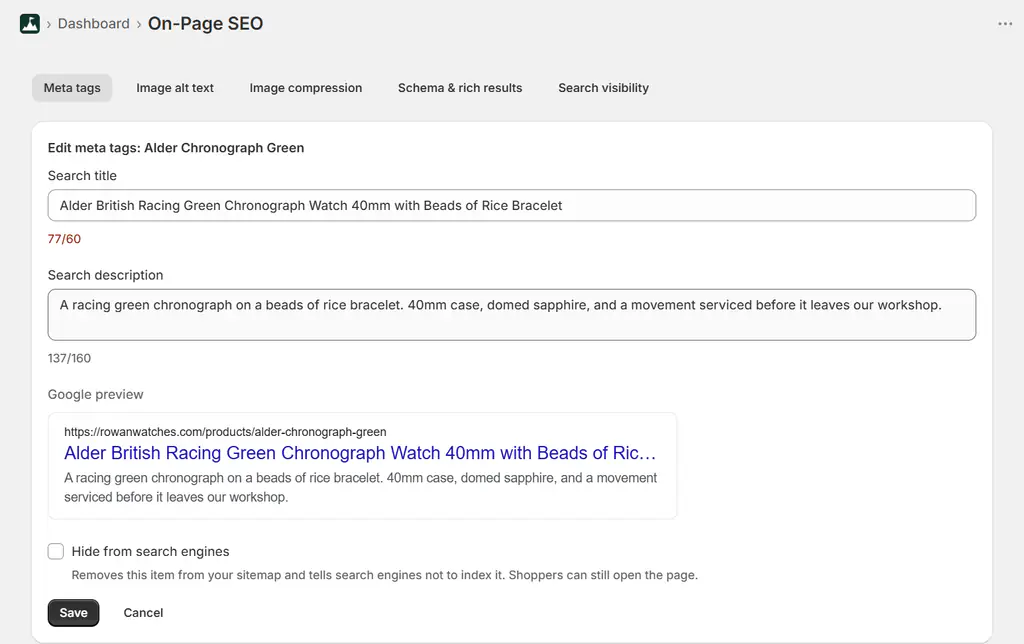
This is the single most useful part of the whole workflow. You stop guessing at lengths and start seeing the result before you save it.
There’s also a “Hide from search engines” toggle on the same panel, for the pages you never want indexed. It sets Shopify’s own seo.hidden field, which pulls the page out of your sitemap too.
Write One Template, Fill Hundreds of Pages
Editing 400 products by hand is still 400 edits. The way out is a template. One pattern, written once, fills in every page from the data Shopify already holds about it.
Go to Settings, then Meta tags, and write a pattern for each content type using the variables in the picker:
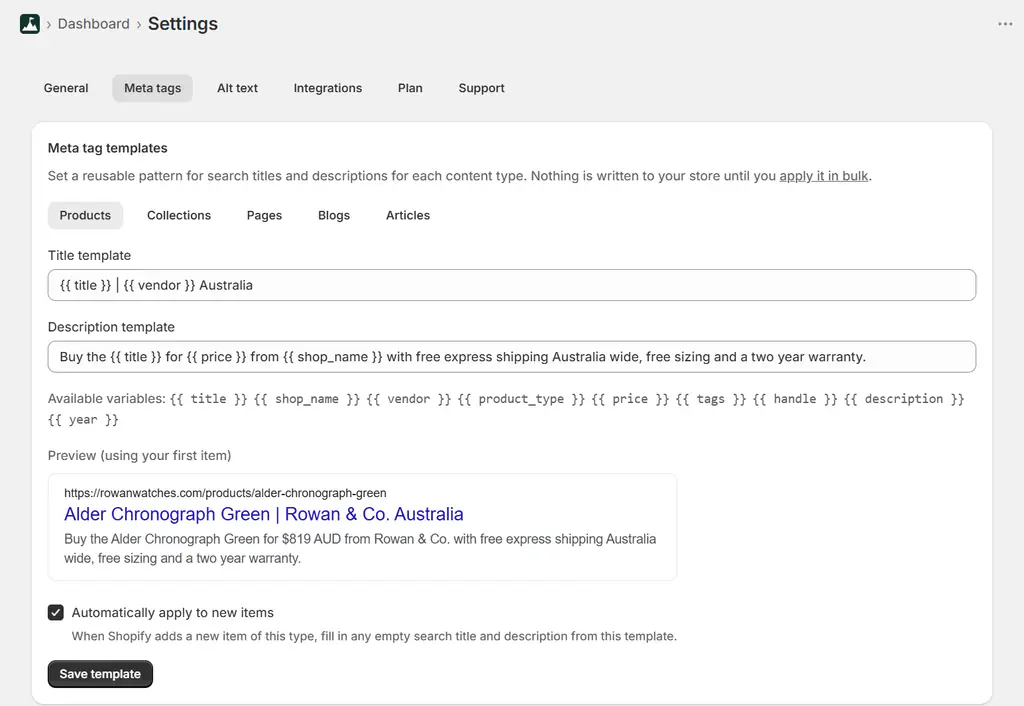
The variables are {{ title }}, {{ shop_name }}, {{ vendor }}, {{ product_type }}, {{ price }}, {{ tags }}, {{ handle }}, {{ description }}, {{ excerpt }} and {{ year }}. The preview underneath renders against a real product from your store, so you see the actual output rather than a pattern full of curly braces.
A few patterns that work well:
- Products:
{{ title }} | {{ vendor }} Australia - Collections:
{{ title }} for Men and Women | {{ shop_name }} - Product descriptions:
Buy the {{ title }} for {{ price }} from {{ shop_name }} with free express shipping, free sizing and a two year warranty.
A template is not a substitute for writing your best pages by hand. It is what you use so the long tail is never empty. The 30 products nobody will ever hand-write get a competent, unique, keyword-bearing snippet instead of nothing at all, and you spend your writing time on the 20 pages that earn the money.
Nothing is written to your store until you apply it. Go back to the meta tags table, select the pages you want, and apply:
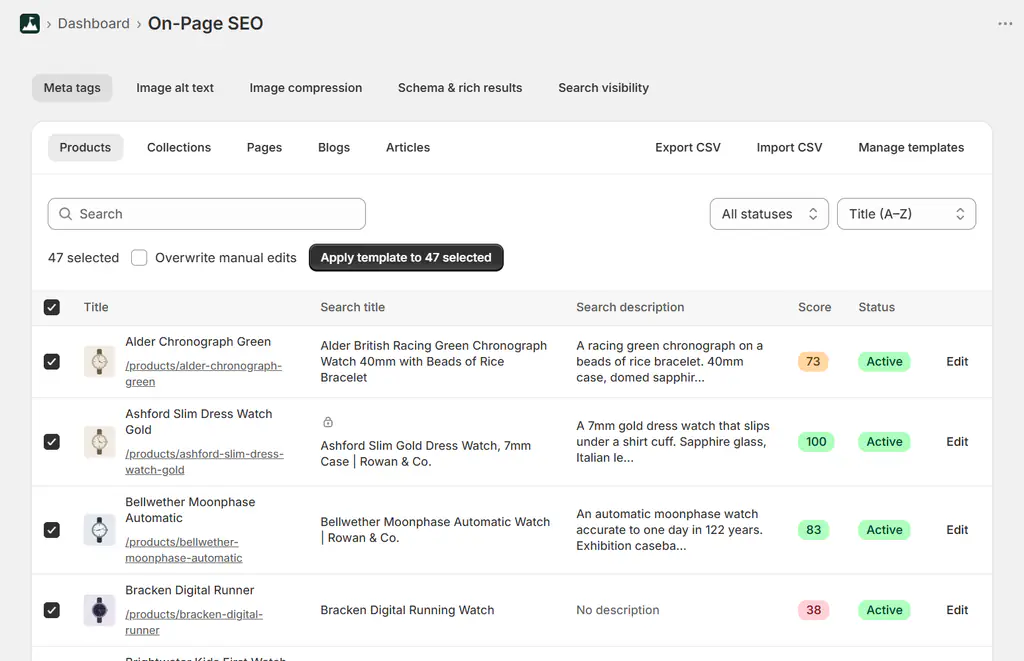
Two things to notice. “Overwrite manual edits” is off by default, so anything you wrote by hand is protected. Run a template across the whole catalogue and your good pages keep their good copy. Tick the box only when you actually mean to replace them. Second, the apply runs as a background job, so you can close the tab.
Progress and results show up under Log:
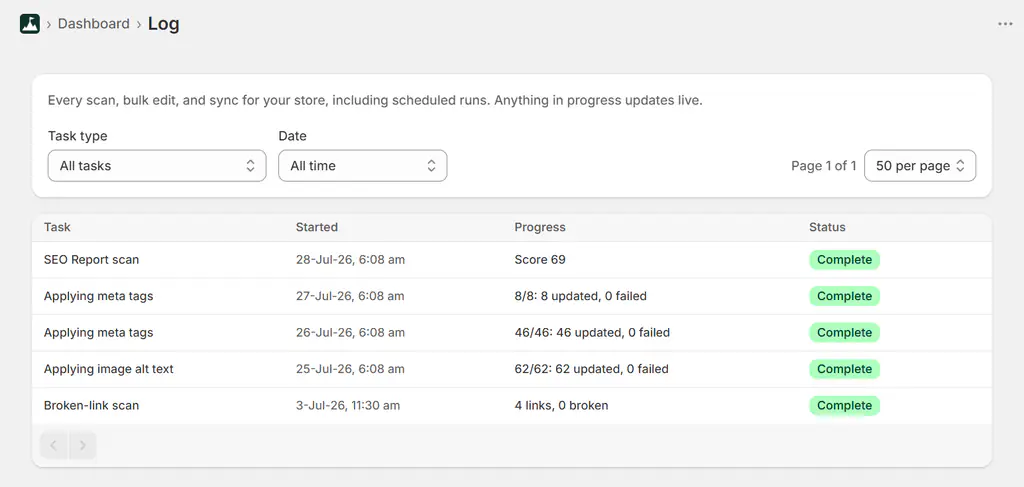
One more setting worth turning on is “Automatically apply to new items”, which means every product you add from then on gets its title and description filled in the moment Shopify creates it. That is the part that stops the problem coming back.
If you’d rather work in a spreadsheet, Export CSV and Import CSV are on the same toolbar. Export, edit the two columns in Google Sheets, import it back.
How to Edit Your Shopify Title Tags and Meta Descriptions One Page at a Time
You do not need an app for this. Shopify has the fields built in, and if you have a handful of pages this is all you need. It is also worth knowing where they live, because it is the same field the app writes to.
Homepage
For the homepage, go to:
- Online Store > Preferences.

- Enter a homepage title and meta description.
- Visit the URL of the homepage. Right-click then view the source code of the page to see if your changes updated exactly how you want. If it didn’t, you need to edit the template.
Pages
For general pages, go to:
- Online Store > Pages.
- Select a page.
- Scroll to the bottom then click “Edit” next to “Search engine listing”. Having clicked edit, it will look like the below screenshot:

- Enter a page title and meta description.
- Visit the URL of the page. View the source code of the page to see if your changes updated exactly how you want. If it didn’t, you need to edit the template.
Collections
For collections, go to:
- Products > Collections.
- Click a collection.
- Scroll to the bottom then click “Edit” next to “Search engine listing”.

- Enter a page title and meta description.
- Visit the URL of the collection. View the source code of the page to see if your changes updated exactly how you want. If it didn’t, you need to edit the template.
Products
For all products, go to:
- Products.
- Click a product.
- Scroll to the bottom then click “Edit” next to “Search engine listing”. Having clicked edit, it will look like the below screenshot:

- Enter a page title and meta description
- Visit the URL of the product. View the source code of the page to see if your changes updated exactly how you want. If it didn’t, you need to edit the template.
If your updates appear on the homepage, pages, collections, and products you’re fortunate to have a Shopify theme built with the option to customise these SEO factors. Jump to the next section on how to write a SEO-friendly title.
How to Edit the Title Tag in Your Shopify Theme
This section is the exception, not the rule. Most modern themes handle the SEO fields correctly and you should never need to touch code. If the text you entered above is not showing up in the page source, your theme is ignoring the fields and you need to edit the template. Do not edit your store’s template unless you know HTML and can easily undo your changes. Hire someone to help with your SEO.
To make the edit:
- In the admin section, go to Online Store > Themes.
- Click “Actions” on your live them then select “Edit Code”.
- Click on the “theme.liquid” file on the left side. This is where you can edit the Shopify theme’s title tags and meta descriptions.

- Find the text between
<title>and</title>then replace it with:
<title>{{ page_title }}{% if current_tags %} – tagged "{{ current_tags | join: ', ' }}"{% endif %}{% if current_page != 1 %} – Page {{ current_page }}{% endif %}{% unless page_title contains shop.name %} – {{ shop.name }}{% endunless %}</title>
I recommend Shopify designers use this in their templates because it allows you to control how the title tags display on all pages in the store and provides fall back. When no title tag is entered:
- The homepage uses the store’s name.
- A general page uses the name of the page then dash and store name.
- A product page uses the name of the product then dash and store name.
- A collections page uses the name of the collection then dash and store name.
The configuration also:
- Supports naming best practices for pagination.
- Works with tags if your template uses filters.
- Does not add a dash and store name at the end of the homepage title tag if the store name is included somewhere.
The store name is good to have for ecommerce in all pages when you have a strong brand presence. If you are a small store and do not have many people search your brand, exclude the store name from your title tag since the store name takes up character space to dilute keyword value. Use this instead:
<title>{{ page_title }}{% if current_tags %} – tagged "{{ current_tags | join: ', ' }}"{% endif %}{% if current_page != 1 %} – Page {{ current_page }}{% endif %}</title>
Google may auto-insert the website’s name into the title. (It is one strategic reason to have a short business name.) Test it for you store.
How to Edit the Meta Description Tag in Your Shopify Theme
This is a lot easier to get right in your template and is often already setup.
- Go to your theme.liquid template.
- Find the line that begins with
<meta name="description"then replace it with the following. This customizes the meta description so that paginated collections vary in description with the page number:
{% if page_description %}
  <meta name="description" content="{{ page_description | escape }} {% if template contains 'collection' %}{% if current_page > 1 %}Page no. {{ current_page }}{% endif %}{% endif %}" />
{% endif %}
- In the unlikely case your theme doesn’t have a meta description, copy-and-paste the code after the closing title tag (
</title>).
Congratulations. Your Shopify store’s title tags and meta descriptions are now ready to be optimised. Let’s continue to do your on-page SEO right to boost visitors and sales.
How to Write an SEO-Friendly Title
Title tags are the second most important on-page factor to help SEO. The most important is great value delivered in an awesome product or service, content, images and user experience. That is the stuff that makes your store fantastic.
Here’s the seven-step process for a perfect title. It should:
- Contain your keywords from the search query analysis and keyword research you did earlier.
- Be between 55-60 characters (sometimes you can get away with 35-60 characters). Too few and you miss opportunities. Too many and Google edits the title.
- Be understandable.
- Present the answer to the person’s search query.
- Match the content on the page. This should happen when the title contains your keywords.
- Be unique to other pages on your website.
- Be attractive or interesting in some way to make people want to click. Interesting is often ticked off when other steps are done.
Here’s what that looks like broken into parts, with the same seven checks beside it:
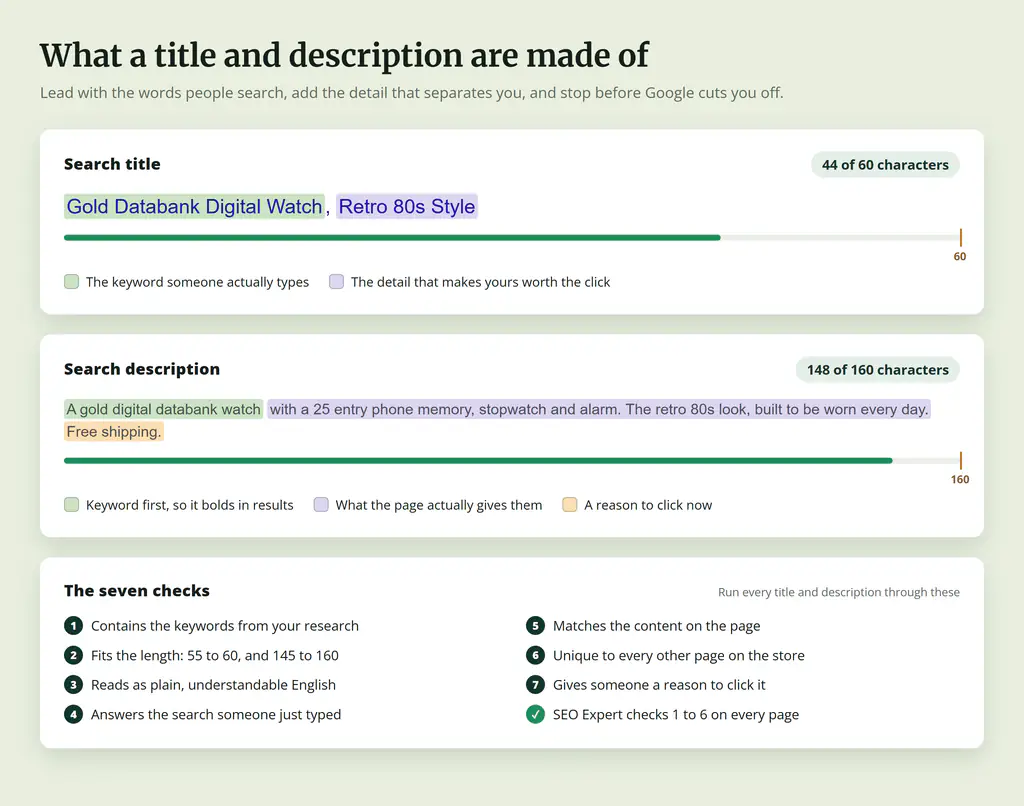
Steps one to six are mechanical, which is exactly why the app checks them for you on every page. Length, presence, duplication and keyword match are all things software is better at than a human with 400 products. Step seven is judgement, and that stays yours.
Some good examples of titles:
- Yo-Yos – Duncan & Yomega – Toys”R”Us
- Best Chef Knives – Six Recommendations – KitchenKnifeGuru
- The Tissue Box Cover Store, Over 50 styles!
- High Protein, Low Carb, Healthy, Keto Cereal | Magic Spoon Cereal
Go ahead and write a few title tags for your pages. Start with your keywords. Run through the other six steps once you have a title written down. It’s better to edit than to have nothing.
How to Write a SEO-Friendly Meta Description
Google in 2009 said the meta description tag is not used in their ranking. What it does affect is user attention and click-through rate, which influences rankings.
Go ahead and write a few meta descriptions tags for your pages. A description is easier to write than a title. The process is the same yet with more character space.
Aim for 145-160 characters. Shopify counts the characters for you when you edit a product or collection by hand:

Include your researched keywords in the meta description so the text is bolded in search results to stand out. Write around the keywords by thinking of the intent behind the search query.
Some good examples of meta descriptions:
- MANSCAPED™ official AU website, home of the Lawn Mower® 4.0 waterproof trimmer. As seen on Shark Tank. All with Advanced SkinSafe™ Technology. Get free shipping now.
- Magic Spoon cereal is high-protein, low-sugar, keto-friendly, and gluten-free. Available in Cocoa, Frosted, Fruity, Blueberry, Peanut Butter, and Cinnamon.
- We’re simplifying the mattress and furniture game. With free and flexible delivery and a 120 night risk-free trial Australia-wide, try it out online today.
- Koala’s comfy as memory foam mattress comes with 120-night trial, 10-year warranty and fast delivery. Why wait any longer for a good night’s sleep?
To fix a brain freeze, search your targeted keywords in Google to see what other websites do. Write something different. Don’t copy the top ranking website since me-too marketing is poor and most stores do not follow the seven-step writing process to produce the perfect title and meta description.
Find the Pages Already Ranking That Nobody Clicks
This is my favourite SEO strategy in the whole guide, and it is the one almost nobody does. Somewhere on your store are pages sitting on page one of Google that hardly anyone clicks. They already have the rankings. They are losing the click because the title and description are weak. Fixing those is the highest return work in on-page SEO, because you are not waiting months for a ranking to move. The impressions are already there.
Give Google two weeks to re-crawl after any change, then go looking.
Connect Google Search Console in the app and the Search Performance tab shows clicks, impressions, CTR and average position with the previous period compared beside it, plus your top queries and pages:
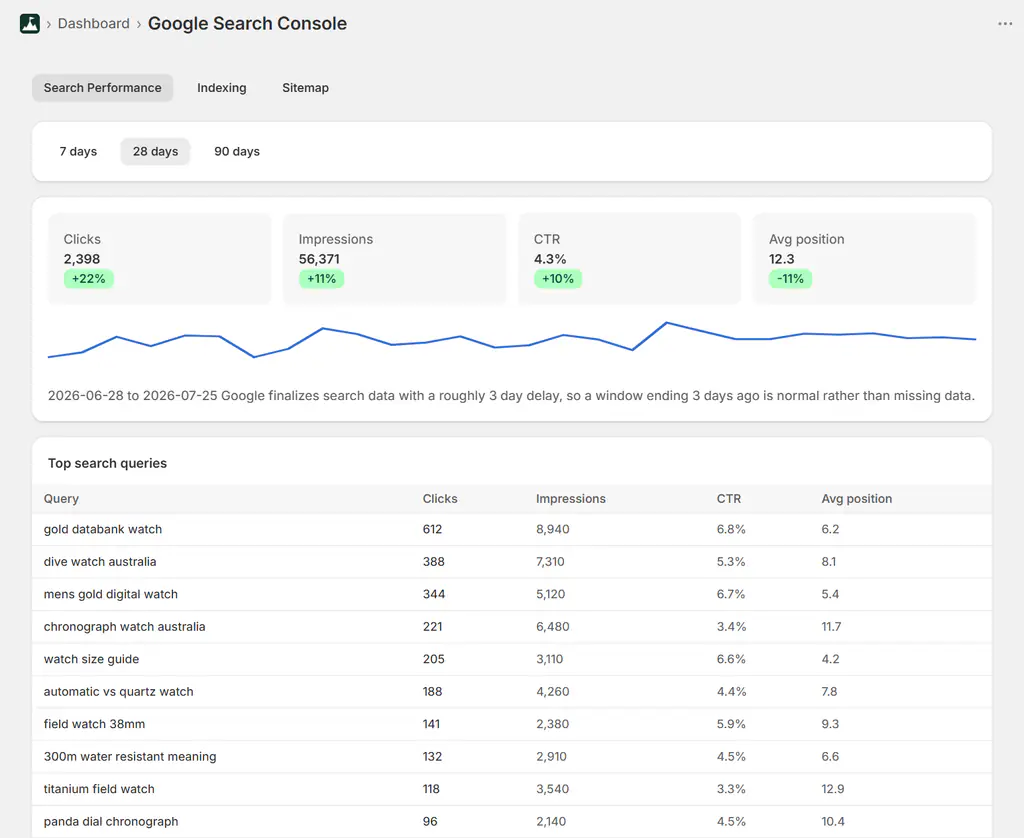
Two notes on reading this. Google finalises search data with roughly a three day delay, so a window that ends three days ago is normal rather than missing data. And the query list is where your next round of keyword research comes from. These are searches your store already appears for, ranked by how much traffic is on the table.
The app crosses that Search Console data with your titles and descriptions and raises the two rules that matter here:
- Ranks well in Google but few people click, so the title or description could work harder. A page on page one with under 2% click-through rate.
- Ranks just off page 1 in Google, so a small improvement could win big. A page sitting between positions 10.5 and 20.5 with real impressions behind it.
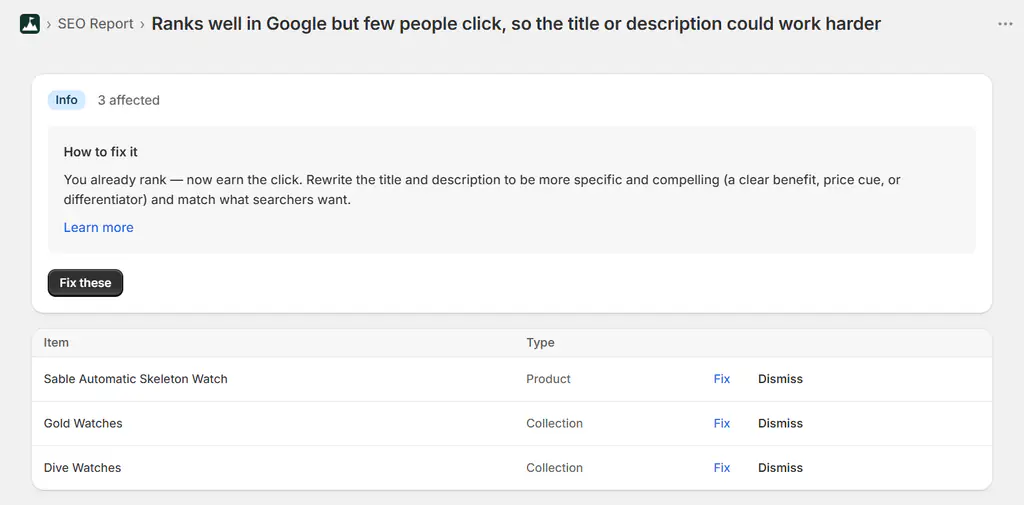
That is a to-do list of pages where a better sentence is worth real money, generated for you every week. Rewrite the title and description on those, wait a fortnight, and watch the CTR column.
You can do the same analysis by hand in Search Console if you prefer:
- Log into Google Search Console then go to “Search Results”.
- Select the “Total clicks”, “Total impressions”, “Average CTR”, and “Average position” check boxes.
- Click the “Pages” tab because what you are about to do needs to be evaluated on a page-by-page basis:

- Sort the pages with the most impressions at the top by clicking the “Impressions” column. For pages with high impressions (relative to your other pages), an average position above 20, and a low CTR (<5%), see if the meta description misses any of the seven steps. Consider a rewrite of the meta description to improve the CTR. Phrase Research is a tool where you can upload your Google Search Console search analytics data to quickly identify your best CTR opportunities. The tool looks at the average clicks for other search queries in the search position analysed.
- Bonus tip: drill down to a specific page then click the “Queries” radio box to view queries for that page. Check if those keywords are included in your SEO on that page.
- Second bonus tip: further optimise pages that have low rankings and high impressions. How could you make the page more completely answer the search queries it ranks for?
- Super advanced bonus tip: split-test meta data with Semrush’s SplitSignal.
How to Prevent Snippets or Adjust Snippet Length
It is possible to prevent Google from showing a description snippet in search results. To stop Google from using any description, use the nosnippet meta tag. To control the character size of the description, use the max-snippet: [number] meta tag like <meta name="robots" content="max-snippet:160">.
Google also says you can prevent certain parts of the page from being shown in a snippet by using the data-nosnippet attribute.
If you want a page out of search results entirely, the “Hide from search engines” toggle in SEO Expert does it without any code, and pulls the page from your sitemap at the same time.
Meta Keywords Tag
The major two SEO tags and titles and meta descriptions. A third SEO tag exists, the meta keywords tag.
Here’s an example of the meta keywords tag:
<meta name="keywords" content="keyword 1, keyword 2" />
I made zero mention of meta keywords in the guide because it has no affect on SEO in Google and Bing.
The one use case of meta keywords is an internal tagging system, but in Shopify this is unnecessary with tagging taxonomy native to the ecommerce platform. By implementing meta keywords, you create an unnecessary task and do keyword research for competitors who can copy your hard work into opportunities for themselves.
What To Do Next?
Here’s the whole guide as a checklist you can run this week:
- Scan the store and find out which pages are actually broken.
- Do the keyword research for your ten most valuable pages.
- Hand-write those ten titles and descriptions, checking the length as you type.
- Write a template per content type and apply it to everything else, without overwriting the ten you just wrote.
- Turn on auto-apply so new products never launch with an empty snippet.
- Two weeks later, find the pages that rank and don’t get clicked, and rewrite those.
SEO Expert: Digital Darts does this list for you. Install it, run the report, and connect it to ChatGPT or Claude to do the writing.
Once your titles and meta descriptions are locked in, the real work starts with keyword research, technical fixes, and content that ranks. If you want help with the full SEO strategy for your Shopify store, we handle organic search growth.
Shopify Title and Meta Description FAQ
How do I write a meta description for SEO?
Since the meta description does not influence Google rankings, it should motivate someone to click-through to the page. The meta description should match the content on the page, be clear, be unique to other pages on your website, and be interesting in some way to make people want to click. Include your keywords of the page to help match up someone’s search intent. The keywords sometimes get bolded in search results which brings attention to your listing.
What should a meta description include?
- Contain keywords.
- Be between 145-160 characters.
- Be understandable.
- Present the answer to the person’s search query.
- Match the content on the page. This should happen when the title contains your keywords.
- Be unique to other pages on your website.
- Be attractive or interesting in some way to make people want to click.
How do you write a title tag?
- The title should contain your keywords.
- Make it between 55-60 characters.
- Ensure it is understandable.
- Present the answer to the person’s search query.
- Match the content on the page.
- Make it unique to other pages on your website.
- Make it interesting in some way to make people want to click.
Can I bulk edit meta titles and descriptions in Shopify?
Not in Shopify itself. The admin only edits one page at a time, from the “Search engine listing” section at the bottom of each product, collection, page or article. To do it in bulk you need an app. SEO Expert: Digital Darts lets you write one template per content type using variables like the product title, vendor, type and price, then apply it to as many pages as you select.
What You Should Do Next...
Get More Free Tactics
Join over 5,000 subscribers. I send what's working in Google Ads, SEO and Meta Ads, taken from the Shopify accounts we run.
Work With Us
We partner with a small number of Shopify stores each quarter to scale paid ads, SEO, and conversion rate. If you're serious about growth, apply below. If it's a fit, we'll schedule a call to map out your plan.
APPLY TO WORK WITH US




57 Comments. Leave new
Hey Josua,
Do you know how to add metakeywords in products page?
I see I can put product tags but it isn’t what I’m looking for.
Hope you can help me.
Thanks in advance
@davidnathr
Re-read the guide David. Meta keywords are a waste of time and may even hurt your SEO.
Didn’t change anything…help?
My meta description on search results of my website didn’t change at all…
Google Bot needs to crawl the page first then index what is updated. Search results can only update this way.
Hi Joshua,
Can you help how can i submit the trending search pages of my website to google?
For example.
https://www.variation.in/search?q=designer+sarees
Don’t. Google have said they do not want to crawl pages with substantially duplicate content like internal search results. Most stores’ search results are essentially doorway pages.
{{ page_title }}{% if current_tags %} – tagged “{{ current_tags | join: ‘, ‘ }}”{% endif %}{% if current_page != 1 %} – Page {{ current_page }}{% endif %}{% unless page_title contains shop.name %} – {{ shop.name }}{% endunless %}
I like this code above, and I like how the shop name title is on the end of the page titles, but for the home page on google the {shop name} : {home page title} comes up in this sequence, and wanted to know how to just have the {home page title } appear without the shop name in front, I dont mind it being tagged after the home page, but I dont want it before the home page title.
Please help! thanks!
Hey Joshua, thanks for the article. I’m currently creating collections to match categories that existed on my old site. However, we also have filters in place on shopify. Any ideas on how to sync collection and filter URLs and meta tags?
Sorry, missed your comments Benjamin. Did you get this solved? If not, provide some example URLs and what you mean by “sync”.
No mention of h1 tags… not much seo juice in this article!
Because the guide has nothing to do h1 tags, which is covered in the expert guide to Shopify SEO: https://www.digitaldarts.com.au/shopify-seo
Hi Joshua,
I know I’m late to comment on this, but do you have any advice or guides for doing custom H1’s for each page? My current theme sets the H1 as the page title by default, which makes for a very awkward looking H1. I looked at your Expert Guide to Shopify SEO, but didn’t see anything related to this. I have been trying to figure this out for weeks now. Thanks in advance.
Just hire someone. It’s a simple web design fix that If you find that challenging, you shouldn’t be doing it.
You should only have one H1 tag per page anyway, so… you should probably make your title whatever you want your H1 tag to be, ie. what the page is about (duh). Not sure why you would be doing “custom H1 tags” on any page.
I didn’t say anything about doing more than one H1 per page. Right now Shopify just uses the title of the page (for instance, the name of the category, so on an ecomm site about hardware, it just says “Electrical”, and nothing else. That isn’t ideal, especially for SEO. To change this, you would need… a custom H1 tag.
Do people that make snarky comments like (duh) when someone is trying to learn really deserve to comment here? I feel sorry for your wife and children FRED, What a dk.
Hi Josh nice article but how do you address a situation like this.. Shoe store with a structure that divides collections using gender, style, brand and this is done via tags. So for example you have a shoe with a tag with Womens, Birkenstock, Sandals.
Now we’re working with the powertools filter menu as we have hundreds of products so a typical URL would be = shopname/collections/mens/birkenstock/sandals. Now my challenge is the page name and description for this URL by default in shopify is from ‘mens’. This gives no reference to what the content / page is actually really displaying which are Mens Birkenstock Sandal products.
Is there a way you can create like dynamic page names in shopify so I’m not stuck with the title of the leading collection?
Hopefully that makes sense?
Hi Leigh, Brad from Power Tools here. We have a helper here that dynamically generates a block of text that you can use in your titles and headers. This may require professional installation, depending on how comfortable you are editing your theme.
https://www.shopifypowertools.com/asset_installers/_natural_language_collection_titles?path=filter_menu
Note that not all themes need this and it is not always worth replacing default text provided by your theme, so I don’t recommend it as a ‘one size fits all’ type of solution, but it does sound like an appropriate solution in your case. If you need further help, please contact our support.
Hi Josua;
How can I declare my website as a spanish website instead of an english website?
I´m looking at the Woorank diagnostics webpage, and my website appears as an English declared website, but it is detected in spanish. I´m afraid this will affect my searches as google will not show my website to spanish users. How can I fix this on a Shopify webpage? I have translated it, but I think it has to be done in the Meta Tags and URL.
See the section on my expert SEO guide that covers international targeting and the hreflang tag. We also have a hreflang app for Shopify.
Hi Joshua,
How can you help me to add products to my site. What do you think about my theme?
Thanks
Okito
Thanks Josh I am following your directions:)
Hi Joshua,
Could you please help me with updating meta title tags on tagged pages?
Currently, meta title tag is displaying like – “Order Online from Kids’ Pyjamas & Sleepwear Summer Collection – Tagged “Girls-Pyjamas-Summer-2017″ – My little Shop”
Please tell me a way how can I customize title tags of these tagged pages?
Waiting for your reply on this!
Thanks
I am guessing there is not a plugin for all this for those of us whos degree didnt come from MIT. All I want at the moment is for the picture I choose to come up in facebook when I or someone else shares 1 picture Spent the last 2 hours trying to get it to happen
No way is there a plugin or application that gets close to doing all this.
Hi Josh,
I am trying to figure out the opposite of this article – how to hide certain pages (like a Thank you page after someone leaves a review) from showing up on Google search. I use Shopify. I’ve read in some places to edit the metadata, but I am just seeing that option for specific pages. Do you have any experience with this?
I think this is the most excellent Shopify SEO guide available online. I pasted some of the code into my store to control how this appears in Google. Thank you for your help!
Hi Joshua,
What is the difference between below,
1. Product name
2. Product Description
3. Meta title tag
4. Meta Description
are the meta info derived from basic product name and product description or they are the totally different entity. please advise.
Hi Aditi,
In Shopify, if you don’t have a title tag entered, Shopify will use the product name in that field. Same thing goes for the product description and meta description. The title and meta description fields give you more control over the snippet shown in search results.
Hi Joshua,
I got report from WMT, it said my shopify web got meta description duplicate.
These two links are duplicate.
sunwear.vn/collections/mat-kinh-rayban/products/rb3025-181
sunwear.vn/products/rb3025-181
link rel=”canonical” was already put in, how WMT still catch the duplicate?
Thanks for your help.
Hi Kinh,
It’s possible Google hasn’t crawled the latest versions of both pages. Even so, I would ignore the warning.
Can you tell me how can I add meta tags to my all collections page?
/collections/all
This is really very helpful information.
Thank you
https://www.omnichannelcommerce.biz/
Useful. Not only for Shopify. I recommend that to my boss maybe he teaches me on SEO products.
Hi Joshua,
thanks for the article.
thanks joshua for sharing this detailed mail on meta title. it was easy to understand and can be implemented well.
Hello Joshua, I updated my websites Meta Title & Meta Description under “Preferences”. I Also verify my website with Google Search Console. I already set up my google analytics. For some reason, when I try to search my website on google search: it does not show the meta description that I have customized. Instead it shows this, “CloutIndustry
https://cloutindustry.com/
CloutIndustry. Coming Soon. Be the first to know when we launch. Promotions, new products and sales. Directly to your inbox. Email. Subscribe. Spread the …
I customize my meta title and description promptly and it still does not show correctly on google search. This is how I want it to look like this when I search my website on google —>
CloutIndustry | High Fashion Streetwear Clothes & Accessories (Meta Title)
CloutIndustry offers a wide selection of premium high fashion streetwear clothes & accessories for every occasion. Visit our online store today. (Meta Description)
Can you please tell me why its not showing on google search the correct way?
Thanks.
Hi Erik,
When searching your page in Google, click on the little green arrow next to the URL then on “Cached”. This will access the cache Google has of the page. In your case, the homepage was last crawled by Google on 14 Mar 2019 10:30:34 GMT. So Google has not yet crawled your updated title and meta description. The best way to get good crawling going is gather quality inbound links. As a short-term fix, you can also submit the URL for crawling in Google Search Console.
Sidenote: you’ll be interested to know when clicking on your domain from gmail, I receive a warning message from Google that your domain is suspicious: This link leads to an untrusted site. Are you sure you want to proceed to cloutindustry.com?
Thanks pal, it worked for my store.
Hi Joshua!
Thank you so much for all your information and answering questions! For a complete newbie, this article has been the most helpful I’ve come across and I actually was able to learn and accomplish a new task. With that, I’ve noticed that my title tag has changed on search engines like yahoo, duck duck go, and bing, but it won’t change in Google. Google has crawled my sight in the last month, but it only lists our store name. The title tag has been changed for 4 months now. Any insights? Thank you again!
Good to hear Erika. Check the last time the page was crawled by looking at the page’s data in Google Search Console. It’s not enough to know the website was crawled as not all pages may be. Secondly, as mentioned, Google will change the title to what it sees fit in SERP and it’s continuing to do so. Review what it’s changing it to and see you can deduce any lessons from it.
Thank you so much for the reply! I’ll definitely be trying what you’ve recommended!!
Great tips for sure, I am having trouble with a duplicate meta issue. Do you know how I can change the meta description and title of this page: http://saltyscales.com/collections/all
Yes, you can edit the meta description and title of the all collections page. You first need to take control of the collection by creating it manually. You then edit the title and meta description for the collection like any other. Shopify have directions to do so.
Okay, but how to create OG Tags so that when I paste my link into facebook, it shows the metadata(tites, tags, etc..) and a nice preview picture?
Here you go Michael: https://shopify.github.io/liquid-code-examples/example/open-graph-tags
thank you for your article. Can we hire you for our website?
You can learn more about SEO service here then reach out to start a conversation.
This is a great article. I am using the minimal theme on shopify and cannot find where the title tag is held, it isn’t in the theme.scss.liquid
Please could you point me in the right direction so that I can add this code in the right place.
{{ page_title }}{% if current_tags %} – tagged “{{ current_tags | join: ‘, ‘ }}”{% endif %}{% if current_page != 1 %} – Page {{ current_page }}{% endif %}
Many thanks,
Jenny
hi when writing a meta description for my products on bulk editor, am i able to copy and paste it into all other variants? (their all different styles of the same product)
On many sites I read about how to write seo-title correctly, but in many respects the situation remained not very clear to me. After reading your article, I received all the answers to the questions that interested me. Thank you, now I can use this information for my site.
Thank you very much, the shopify tags were missing in theme liquid and now I could add it because of your article. Appreciate!
Thank you very much, the shopify tags were missing in theme and now its working!
After we take the time to write baller optimized short SEO descriptions (bottom of the product page/search engine-meta description), how can we reuse our fantastic text? For instance, using it automatically as a metafield or display as a paragraph in our product descriptions? I can’t find any liquid variable that pulls or references that particular page data field
If you’re manually writing the meta description, and you want to use it in the product description, I would want to manually edit the product description with it. The liquid field is
page_description.Hi Joshua, thanks for a really great article and assistance on Shopify. Appreciate how you respond and reply diligently to people’s issues and remarks. Inspiring bro!
Hi Joshua ,
Which is best shopify app for Title tags , Description , meta title , meta descriptions (meta tags) customization? Is FavSEO a better app